

- Mac
- Windows / Linux
⌘ + K

Closing the panel clears every filter value, so each Cmd+K starts from a clean slate — and a chip you added just for that search goes with it. To keep a filter in the bar for good, open the gear menu at the bottom of the panel and tick it under Default filters.
What Search looks through
Search has two match modes over the same material. By name — the default — it matches titles and file names. Search document content instead matches passages inside your documents, by meaning rather than by the words you typed.
Assistants and templates that exist in several languages are listed under the title for your interface language.
Search covers every project you can open, including the ones shared with you; nothing from a project you aren’t a member of appears. If your team has Databases, they are searched alongside projects: the first filter chip reads Location, its default is Everywhere, and its dropdown lists your projects and your databases as two groups. Without Databases the same chip reads Project and defaults to All projects.
Playbooks, Discovery templates, Assistants and Workflows don’t belong to a project, so they drop out of the results as soon as you narrow Location to a single project.
How to use Search
1
Open Search
Press Cmd+K (Mac) or Ctrl+K (Windows), or click Search all projects at the top of the sidebar. The same shortcut closes the panel again.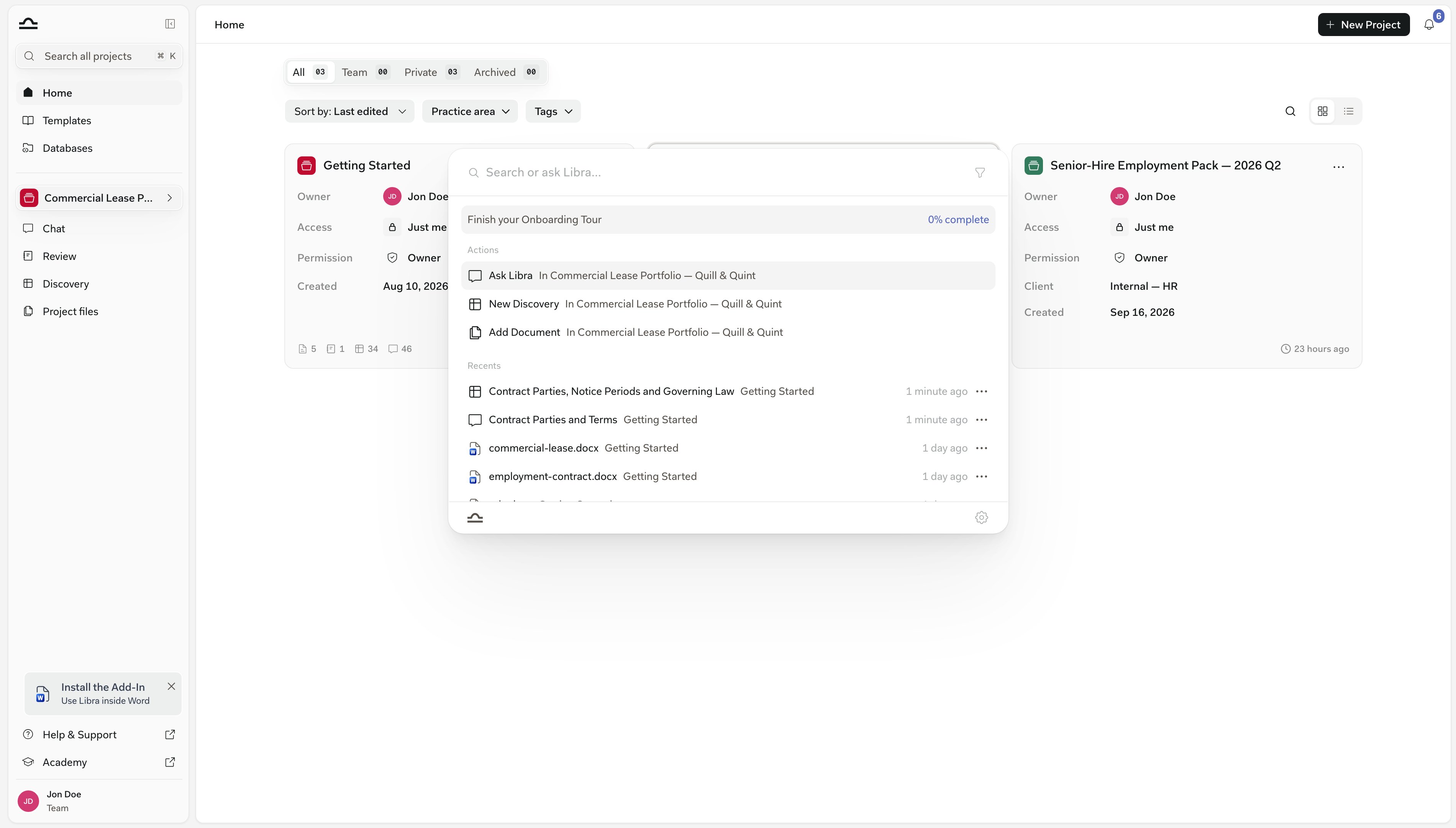
2
Start from Recents, or from an action
Before you type, the panel lists Recents — the chats, documents, folders, Reviews, Discoveries and templates you touched most recently. If what you wanted is right there, click it.Above them sits an Actions group — Ask Libra to open a new chat, New Discovery to start a Discovery, and Add Document to open Project files and upload — each tagged In <project> when you’re working inside one. New Discovery needs edit rights on the project you’re in; Add Document needs them too, unless you’re outside a project. The group disappears as soon as you type or set a filter, and comes back under Try instead when a query finds nothing.
3
Type what you're looking for
Results appear under a Results heading with a running count. Each row shows the type icon, the name, and the project — or the database — it belongs to.A chat run with a Workflow or an Assistant shows that icon instead of the chat bubble. A chat started in the Word or Outlook add-in carries a small badge; hover it for Started in the Word add-in.If the query comes back with almost nothing, a second, typo-tolerant pass runs automatically; you’ll see Looking for similar matches… while it does.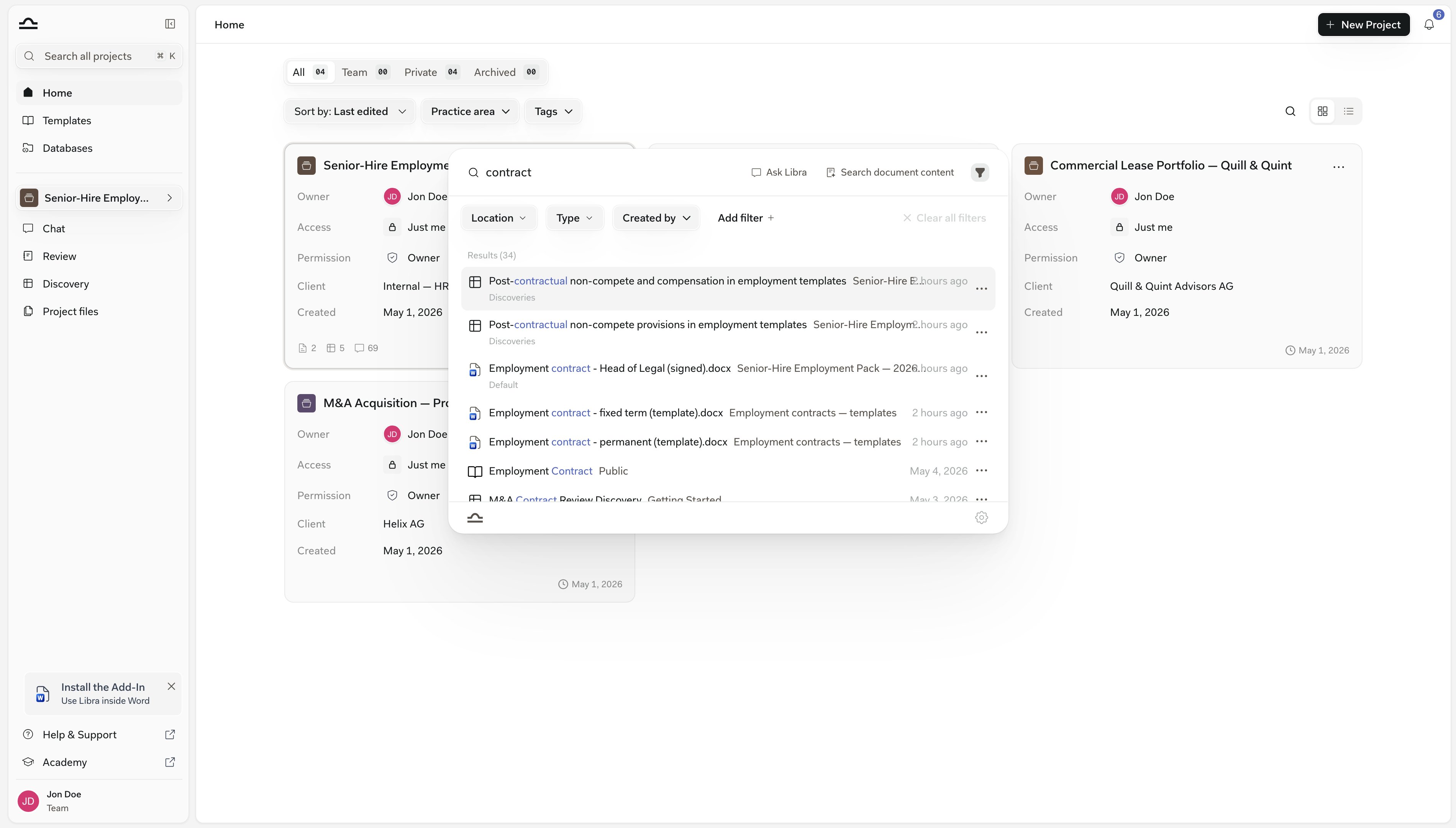
4
Narrow down with filters
The filter icon to the right of the input opens the filter bar, and leaves it open until you close it again. It starts with Location (Project, if your team has no Databases), Type and Created by; Add filter brings in Date, Practice area, Tags and Favorite, and Clear all filters resets everything at once.Type narrows to Chats, Documents, Folders, Reviews, Discoveries, Workflows, Assistants or Templates — the last covering Playbooks and Discovery templates together. Created by set to You is the quickest way back to your own work. Favorite narrows to your starred work: chats, Assistants, Workflows, Playbooks and Discovery templates are matched on their own star, while documents and folders — which carry no star of their own — come through whenever the project they sit in is starred. A Review or Discovery needs both: its own star and a starred project.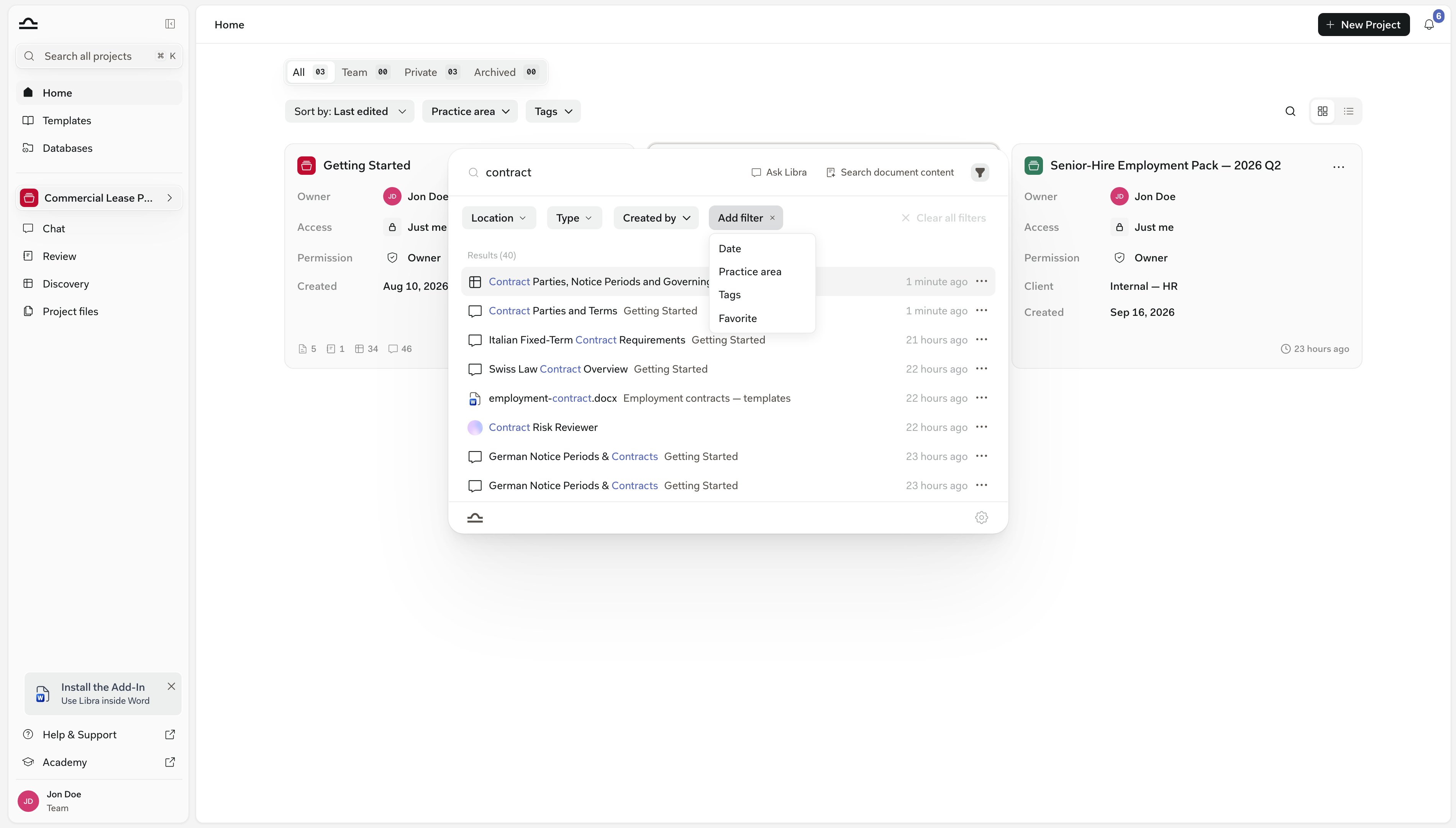
5
Open a result
Click any result, or use the arrow keys and press Enter. Libra goes to the right place: the chat, the document, the Review screen, the Discovery results. If the result lives in a project other than the one you’re in, Libra asks Switch project? first, so you don’t lose your place by accident.Documents open in the preview panel when they’re PDFs. Anything else — a Word file, a spreadsheet, an email export — can’t be previewed, so Libra falls back to Show in sidebar: it opens Project files and highlights the document in the tree with a brief pulse.
Searching inside a document’s text
Some questions don’t match a document by name; they match a passage. Search document content finds those passages by meaning, even when your phrasing doesn’t match the words on the page.
Asking “clauses about who pays for legal fees” finds passages about indemnification, prevailing-party costs, and attorney fee awards — even when none of those words appear in your query.
1
Type at least three characters
The Search document content button appears beside Ask Libra, to the right of the input, once your query is three or more characters long.
2
Click Search document content
The results list is replaced by a Document content section with its own count. Each row carries the document’s title, the project or database it sits in, a page badge such as p.12, and a two-line snippet with your match highlighted. There is no relevance score on the row — the ranking is the order.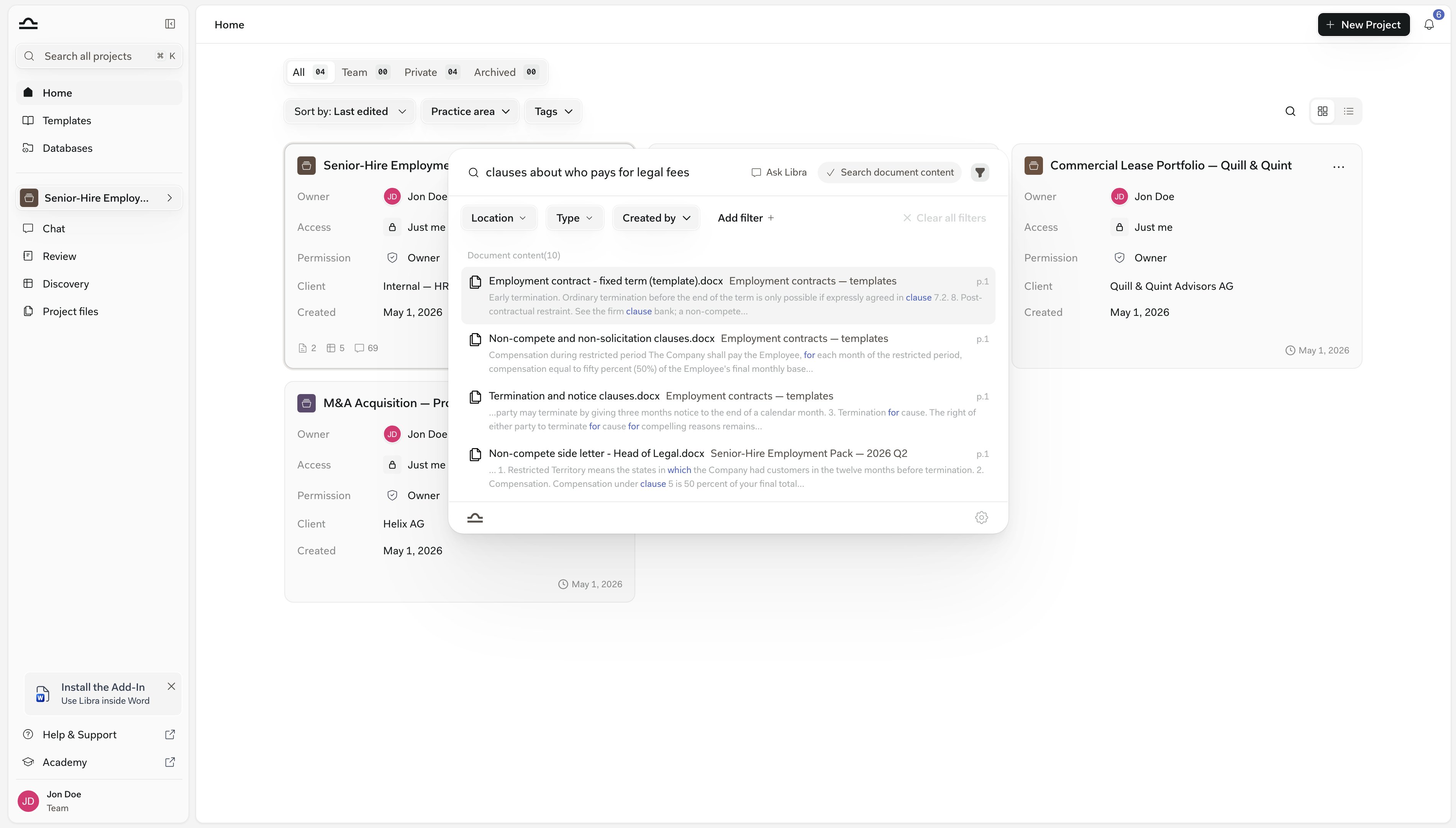
3
Refine the query without losing your place
Editing the query while you’re in content mode shows Press Enter to refresh document search. The previous results stay on screen until you submit, so a mistyped character doesn’t wipe them.
4
Open a passage, or go back to names
Clicking a result opens the document at the cited page with the snippet highlighted, exactly like following a citation. The content button stays highlighted while the mode is active — click it again (its tooltip now reads Show title results) to return to matching by name.
If your team has Databases, the content toggle is independent of the filter bar: every filter you have set stays active as you switch between name results and content results. Without Databases, content search can only honour the Project filter — so if Type, Created by, Date, Practice area, Tags or Favorite is set, the button is disabled and its tooltip names the filters to remove.
Acting on a result without opening it
Most rows carry a ⋯ button at the end — in the Recents list as much as in a set of results — opening the same actions you’d find on the item itself, so you can rename, share or clear something out without leaving the panel. A row you have no action on carries no menu.You only see the actions you’re allowed to perform. Libra asks the server what you can do with each result, so renaming, sharing, archiving and deleting drop out of the menu for anything you only have view access to.
Ask Libra — turn the query into a chat
Sometimes the answer isn’t in your workspace yet. Ask Libra sits to the right of the input from the first character you type, and it’s also the first entry in the Actions group before you type anything.
Ask Libra doesn’t just paste your query into a new chat — it sends it. The chat starts in the active project, so switch projects first if you want it scoped elsewhere.
Searching inside one database
A database has its own search box in its browser, labelled Search files, and it works on the same two modes as Cmd+K — but scoped to that database alone. Search document content searches the passages in its files, and Ask Libra opens a new chat with the database attached as a source and your question already sent. See Databases.Tips for getting better results
Search shrugs off accents, and partial names match
Search shrugs off accents, and partial names match
Searching for “Lopez” still finds “López”, and German, Italian, French, or Spanish accents (perché, caffè, über, straße) match against content stored without them. You don’t need the full title either — any part of a name matches.
A near-miss usually still finds it
A near-miss usually still finds it
When a query returns five results or fewer, Libra follows up with a typo-tolerant pass over the same material, so a transposed letter or a half-remembered spelling normally still surfaces the item.
Use content search for concepts, names for documents
Use content search for concepts, names for documents
When you’re hunting for a concept — “clauses about indemnification”, “passages discussing termination for cause” — switch to Search document content. Default matching is the right tool when you know the document’s name or are looking for a chat you had.
Set Location when you know the matter
Set Location when you know the matter
If you know which project or database the result is in, set Location to it. Everything else drops away, and content search gets a much smaller corpus to work through.
Filter by Created by to find your own work
Filter by Created by to find your own work
Setting Created by to You is useful when you’re trying to find your own draft or notes among many shared resources.
Every search starts fresh
Every search starts fresh
Query, results and filter values are all cleared when the panel closes, so nothing you searched for last time leaks into the next one. The bar comes back with Location, Type and Created by, plus whatever you ticked under Default filters in the gear menu at the bottom of the panel — that choice survives closing the browser. A chip you added with Add filter for a single search is not kept.
Keyboard shortcuts inside Search
Next steps
Home
Browse your projects directly.
Databases
Reusable document sets that Search treats as Locations.
Project files
The panel Search hands you back to.
Templates
Find a reusable template.