

The number counts distinct sources, not citation markers, so it always matches the cards.Only sources the answer actually drew on get a card: research results Libra was offered but never quoted are dropped, and a Review or Discovery you attached purely for context appears only if the answer cites it.

In a Document card, click the snippet itself rather than the View source button. The snippet opens the document at that exact page with the cited passage highlighted; View source opens it from the top.
What each card shows
Cards follow the order the answer first cited them, never grouped by type, and one stays open at a time.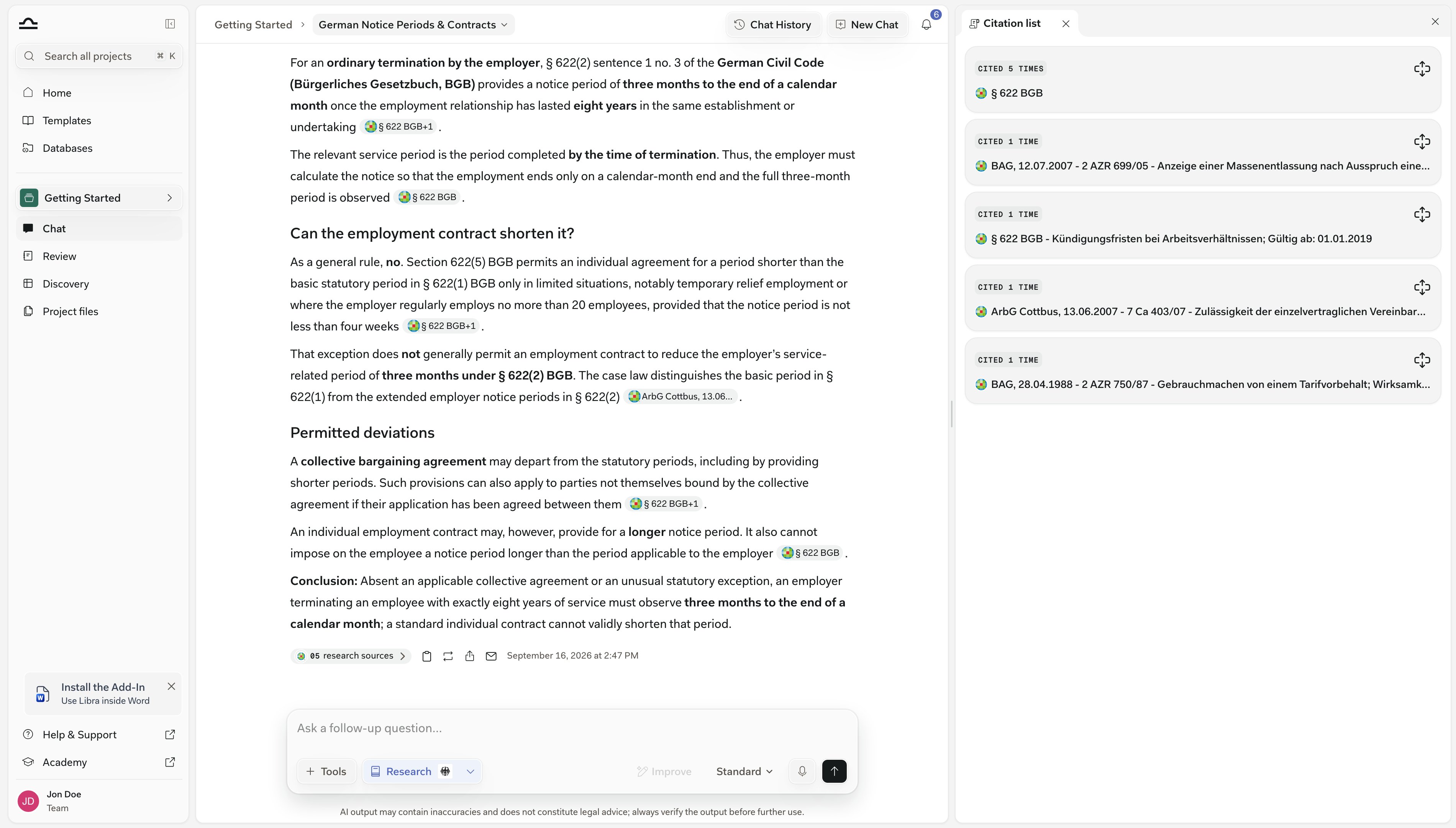
Reading the panel
The panel runs one loop: expand a card, jump to where the answer used that source with Find in chat, then open the original. Four clicks take you from the pill to the lease clause the answer quoted.1
Click the Cited Sources pill
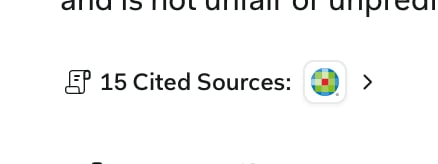
2
Expand a card
Opening another card closes the first.
3
Cycle the occurrences with Find in chat
Find in chat sits on the last snippet of an expanded card and scrolls the chat to where that source was used.Tap it again to step to the next occurrence; at the end it wraps back to the start. The marker flashes on each hit and the panel stays open.
4
Or open the source
View source opens the original in a new tab or in the document viewer. Review and Discovery cards label the same button Open Review and Open Discovery.
Citation tooltip
Citation markers are chips carrying the source’s name, truncated — not a numbered reference. Hover one without clicking and a tooltip appears.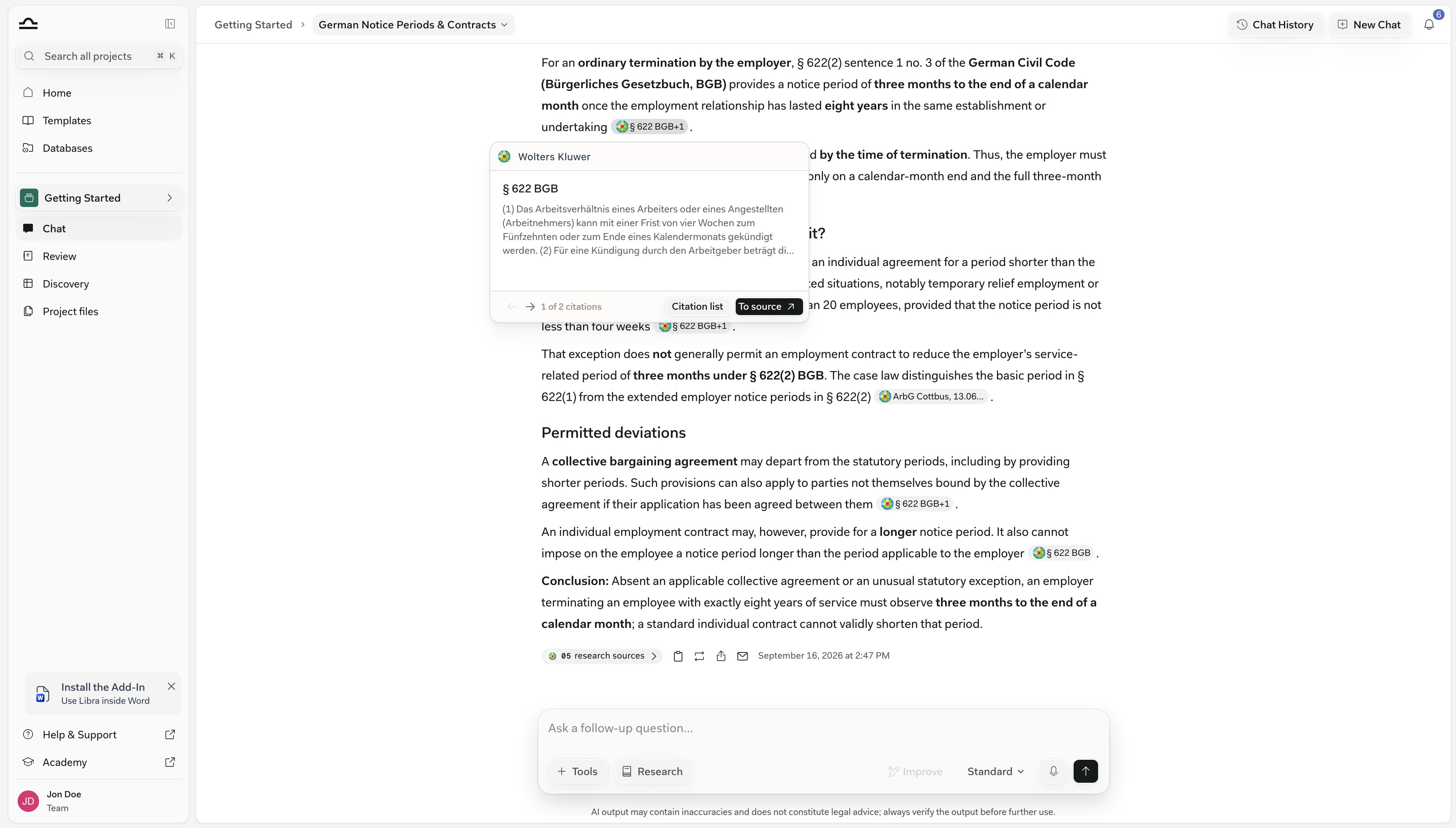
Working with a table in an answer
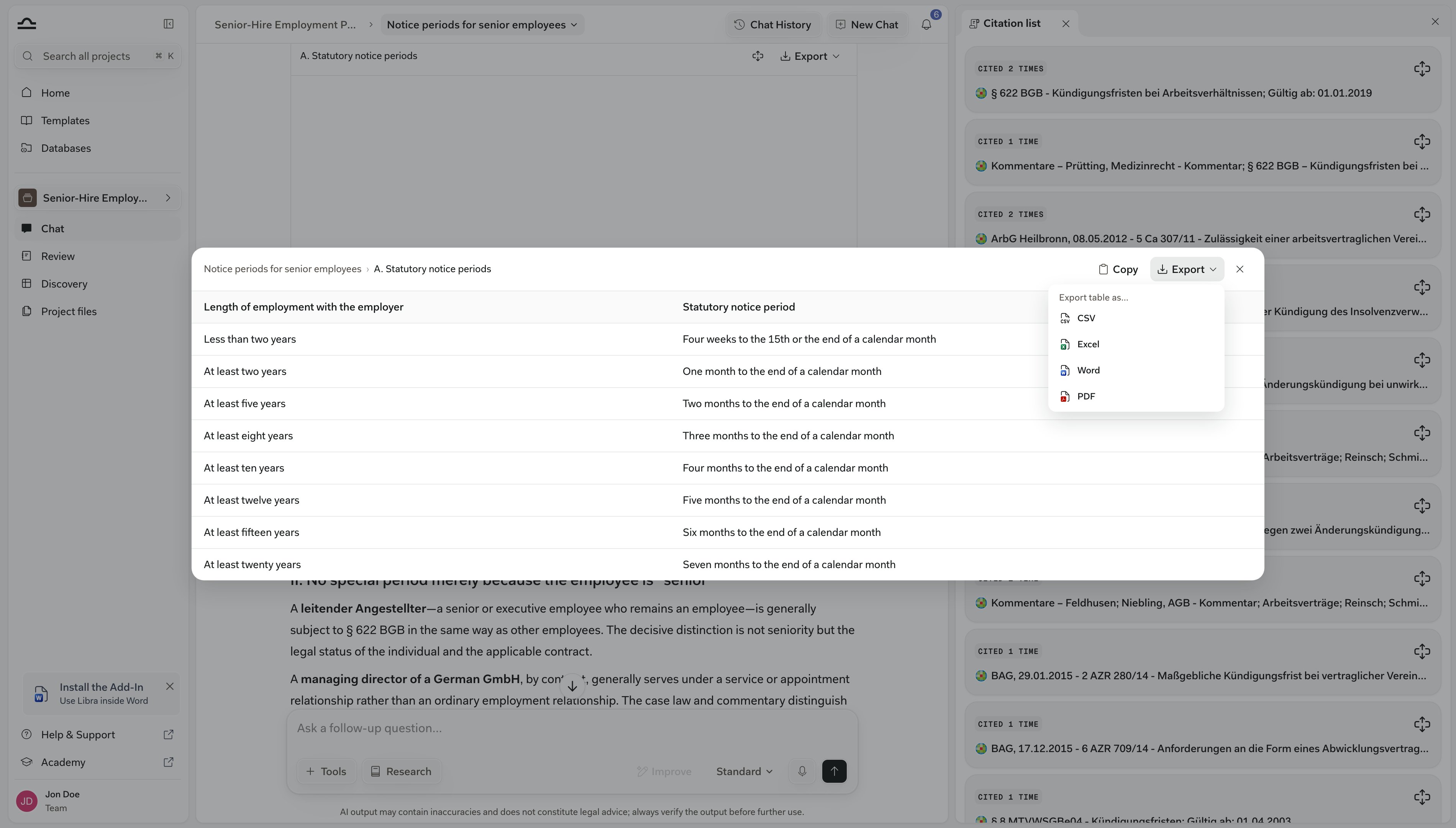
A table in an answer gets a toolbar above it holding the table’s name, Expand table and an Export menu. Hovering a cell puts a copy button on that cell alone.
With citations turned on, the sources come across as cell comments in Excel, inline in the cells in CSV, and as footnotes in Word and PDF.
Citation format when you copy or export
Citations come across in one of two forms: footnotes, or plain text with the markers stripped. The Copy button under an answer offers exactly that pair — Copy with footnotes or Copy plain text.
Selecting answer text instead raises a smaller toolbar with Copy plain text and Ask Libra, which starts a new question from the passage you highlighted.
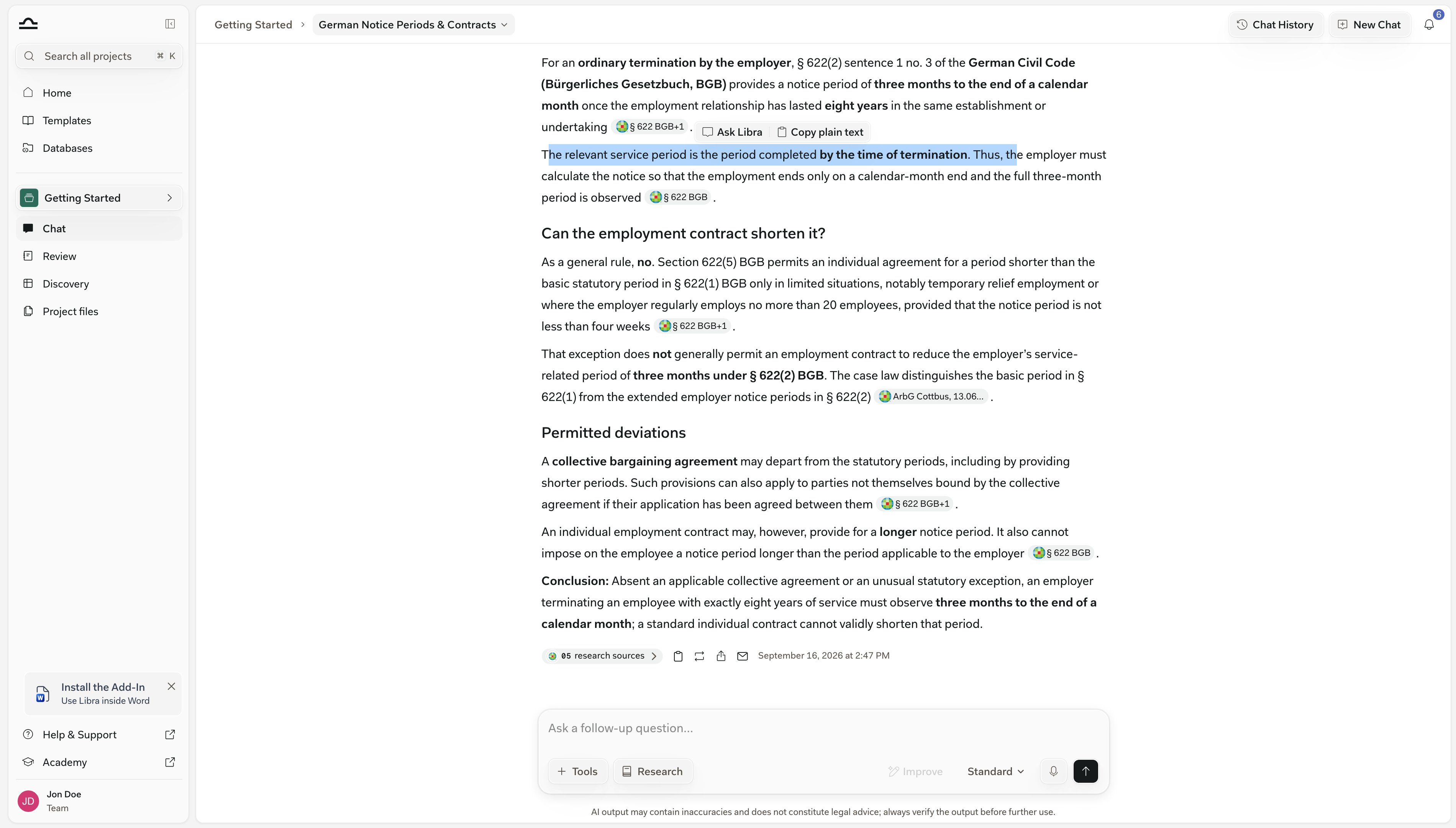
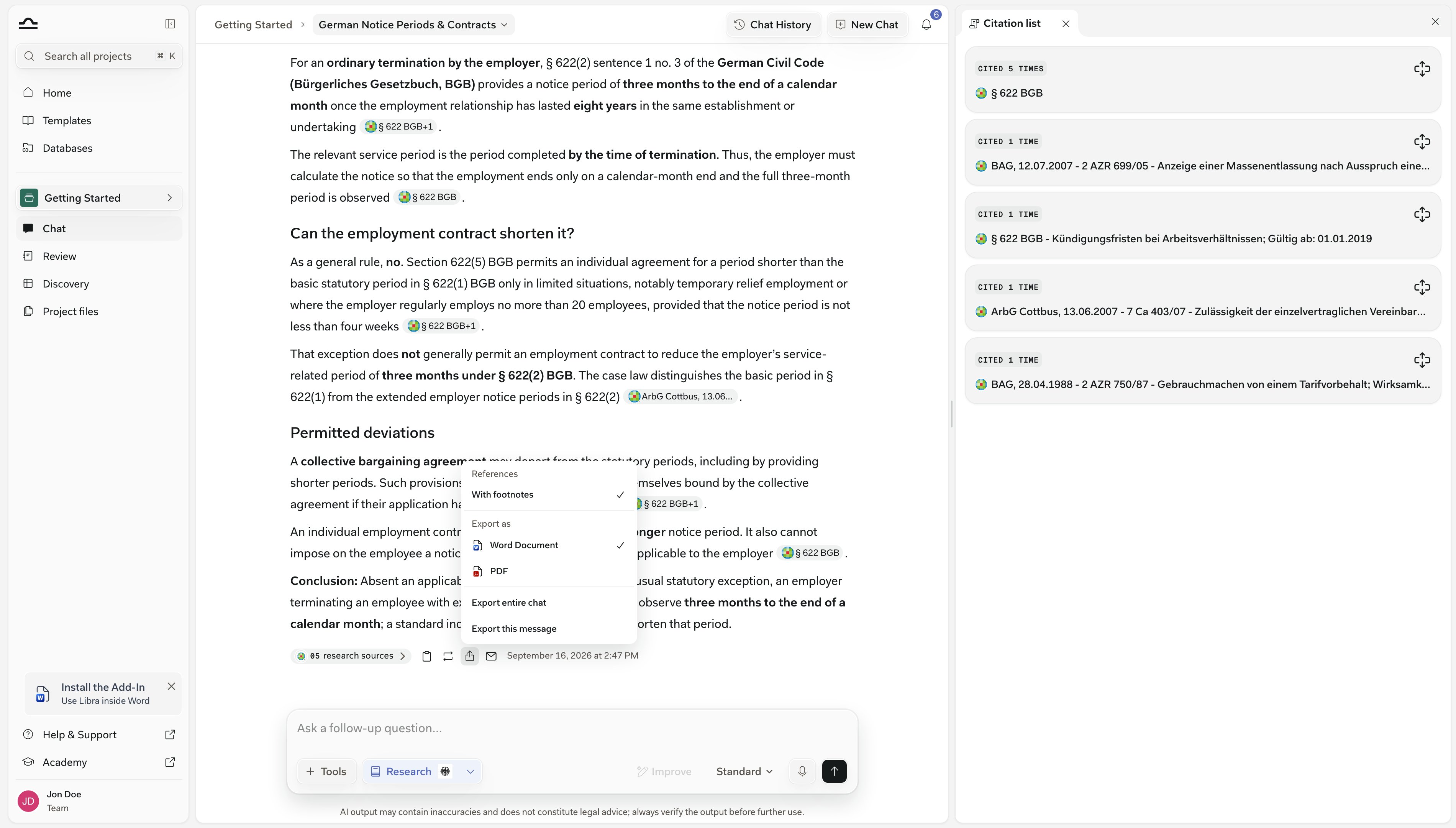
How far to trust a citation
The snippet in the panel is the exact text the answer was built on — Libra’s quotation of the source, not the source. A citation from Web Search shows the line Be aware: unverified third-party web information. in its tooltip — a public page Libra read, not a licensed legal database, and nothing about it has been checked.
Leave the panel open as you read a long chat.The panel belongs to the answer you opened it from: click the Cited Sources pill on another answer and it re-points at that answer’s sources instead of opening a second panel or piling up everything the conversation has cited.
Tips for working with citations well
Read the steps strip alongside the panel
Read the steps strip alongside the panel
The strip above the answer — headed Thought for … once it has finished — records which databases Libra queried. The Citation list panel records which results made it into the answer. Together they are the full research path; see Research mode.
Next steps

Research mode
Activate research and pick your sources.
Chat basics
The composer, the modes, and finding an old conversation.