


Attach two Reviews to one chat, v1 and v2 of the same contract, and ask “which deviations were fixed in v2, and which are new?”. Libra can answer across both, Topic by Topic.
Run a Review from chat
Either arm Review mode explicitly from Tools → Start analysis → Review, or just describe what you want and let Libra pick the tool. Chat tools covers the menu itself.1
Arm Review mode (or describe what you want)

2
Attach the contracts and write the prompt
Drag the contracts into the composer, or pick Tools → Upload files from computer, which opens your file browser directly. For files Libra already holds, type 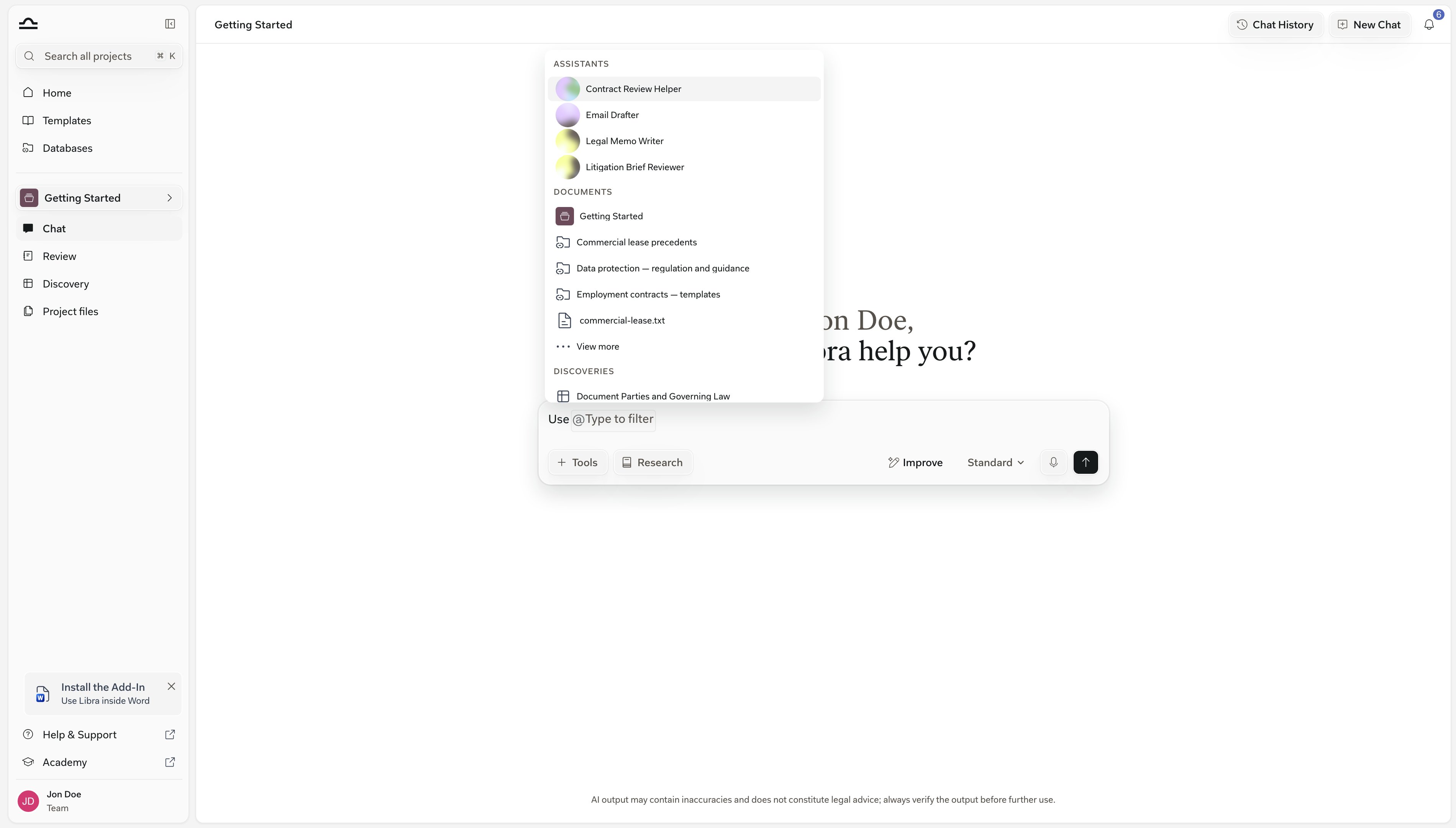
@ and pick them from the Documents group of the context picker.Then write a prompt that describes what to check, like “review these against our standard NDA terms” or “check confidentiality, term, and termination clauses”.A Review needs at least one document. If you send without attaching anything, Libra won’t start a Review — it asks you to attach the document you want reviewed.3
Send, then pick a Playbook
Send the message. Before running anything, Libra settles which Playbook to review against — a saved set of Topics, Positions and Rules. It doesn’t choose one silently:
- Attach exactly one Playbook to the message — type
@and pick it from the Playbooks group — and Libra uses it, no picker. - With fewer than five Playbooks available, the picker lists them all.
- With five or more, Libra ranks them against your documents and your prompt first, then shows the best matches.
4
Watch the Review fill in, Topic by Topic
Libra answers with a Review created card: the Review’s title, its Topic and document counts, and one numbered row per Topic.Each row carries a tag — Pending while it waits its turn, Evaluating while Libra is working on it, then No risk, Medium risk or High risk once it resolves.Not verifiable means nothing in the documents let Libra judge the Topic’s rules, Not found that they hold nothing on the subject at all, and Failed that the evaluation broke. You don’t have to wait for the whole Review to start reading.
5
Open the result
The card has two ways out. Open preview opens the finished Review read-only without leaving the conversation. Open Review opens the full Review page, where each Topic has Verify, re-run, edit and delete actions, and the header carries Export and Save as Playbook.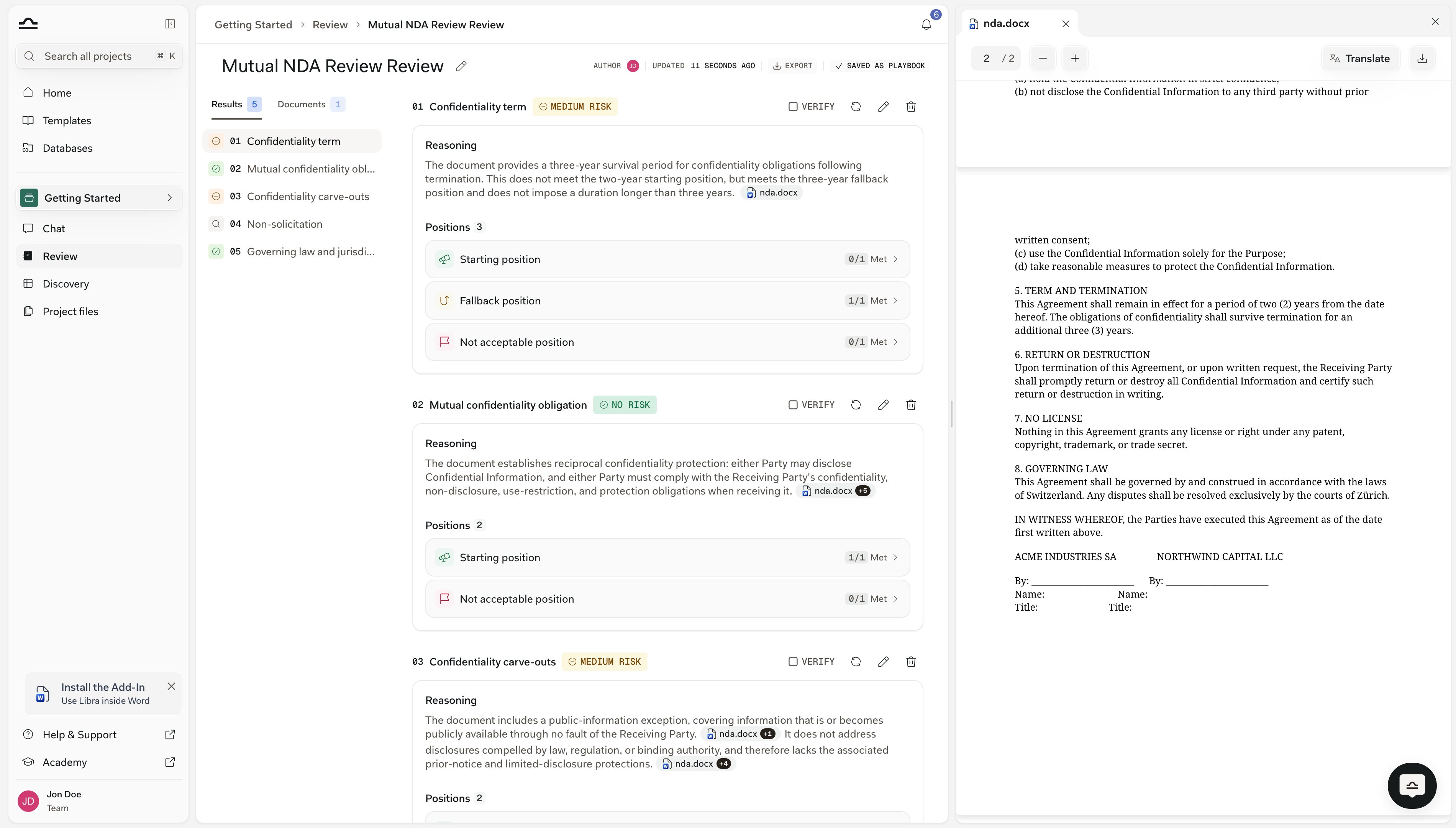
6
Auto-attached for follow-ups
The Review you just created stays attached to the conversation, so a follow-up like “now draft a redline email summarising the high-risk Topics” already knows about it — including after a page reload.
Build a Playbook from chat
You don’t need an existing Playbook to get a structured Review. Describe the review you have in mind and Libra drafts a reusable Playbook — a set of Topics, Positions and Rules — that you can save and run again on the next matter.1
Arm Playbook mode

2
Describe the review, or attach an example
Tell Libra which side you act for and what to check — “a Playbook for reviewing standard German employment contracts from the employer’s side, covering working time, remuneration, probation and termination” — or attach an existing checklist to work from.
3
Answer the intake questions
Libra asks about the matter before it drafts anything, then looks the standard positions up in your legal databases rather than lifting them out of a contract you attached.That distinction matters: a Playbook copied from one contract would only ever approve that contract.With Research mode switched off, Libra asks you to switch it on instead of writing positions from its own general knowledge.
4
Refine and save the Playbook
Libra drafts the Topics, Positions and Rules. Refine them in chat: you can change several Topics in one message, like “rename topics 2, 5 and 7” or “add a governing-law topic and drop the NDA one”, and Libra applies them together.The saved Playbook lands in the Reviews tab of the Templates library and under My Playbooks on the Review page, ready for the next contract.
The Playbook editor has its own chat panel, and there Send is disabled while the form holds unsaved changes — the tooltip asks you to save or discard first. That keeps a chat edit from forking a version your form could never save onto.
Building and running Reviews from chat needs a project and a plan that includes Review — the same requirement as the Review feature itself.
Chat beside a Review
The traffic runs the other way too. Open a Review and a chat bubble sits in the bottom-right corner of the Review page. If you came here from a chat, the bubble continues that conversation; arrive without one open and it starts a fresh chat. Either way the Review you’re looking at is attached automatically, so you don’t have to@-mention it. The bubble’s header lets you switch to another chat or start a new one.
From there you can ask Libra to read a Topic’s full definition and reasoning, add a Topic, rewrite one, or delete one. Edits apply to this Review only and never change the Playbook it came from.
Anything you add or change is re-evaluated in the background and the page updates in place, with no manual refresh.
You can change several Topics in one message — Libra batches them into a single edit — but only one such edit per message. After it lands the Review is busy re-evaluating, so a second edit in the same turn is refused.
Libra tells you the Topics are updating and reports the new outcomes in its next message.
Two limits. Edits need a Review that has finished evaluating: you can’t change Topics while a run is in progress, including in the moments right after the Review is created, and Libra will tell you to wait.
The bubble is also desktop-only — it doesn’t appear on mobile.

Reference a finished Review in chat
Once a Review exists, attach it to any chat as context. Libra answers with citations back to specific Topics, without you copy-pasting anything. Type@ anywhere in the chat input and the context picker opens, grouped by type — Assistants, Documents, Discoveries, Reviews and Playbooks. Pick the Review you want and Libra treats it as part of the chat’s context.
Attaching context is an @ job. The Tools menu handles files, Assistants, Workflows and starting new work instead — see Chat tools.
Reference flow in practice
Four steps from a finished Review to an answer that cites it.
1
Open a chat in the project where the Review lives
Reviews are project-scoped, so the chat needs to be in the same project — or attach the project itself, which lets Libra reach the Reviews inside it.
2
Type @ and pick the Review
The picker groups its suggestions by type. Reviews appear under Reviews, with the Review icon.
3
Ask your question
The Review is attached as context. Examples:
- “Which topics came back high risk and why?”
- “Draft a redline email summarising the deviations.”
- “Compare this Review to the Review I ran on the previous draft.”
4
Read the answer with Topic-level citations
Libra’s answer cites specific Topics from the Review. Open the Cited Sources panel: a whole-Review card expands into a Topic roster, one row per Topic with its risk badge, so you can see at a glance which Topics drove the answer.
How a Review citation looks
A Review citation isn’t bracketed text. It renders as a compact chip in the answer: the Review icon followed by the Topic’s name, or the Review’s title when the citation refers to the Review as a whole. Hover the chip and a card opens with the Topic’s number and name, its risk badge, and the Reasoning Libra recorded for it. The card’s Show in Review action takes you to that Topic on the Review page.Common chat-on-Review prompts
These all assume the Review is attached. Copy one and swap in your own matter.Summarise the Review
Summarise the Review
“Summarise this Review in one paragraph for the client. Focus on the high-risk topics.”
Draft a redline email
Draft a redline email
“Draft an email to opposing counsel listing every deviation we’d push back on, ordered by risk.”
Prepare a partner briefing
Prepare a partner briefing
“Prepare three bullet points the partner should know before the call. Include risk levels and citations.”
Compare two Reviews
Compare two Reviews
Attach two Reviews (e.g. v1 and v2 of the same contract). Ask: “What changed between these two reviews? Which deviations were fixed in v2, which are new?”
Translate the result
Translate the result
“Translate the high-risk findings into German for the client.”
Reviews vs. Discoveries as context
Both Reviews and Discoveries can be attached to a chat as context. They cite differently:
You can attach both at once, for example, a portfolio Discovery and a deep-dive Review on one of the Discovery’s documents.
Tips for getting useful answers
Attach the documents before sending (creation flow)
Attach the documents before sending (creation flow)
Reviews need contracts to work on. Without an attachment, Libra won’t run the tool — it asks you for the document instead.
Be specific about what you want
Be specific about what you want
“Summarise this Review” gets generic. “Summarise this Review in German for an internal partner. Focus on Topics with High risk and include citations.” gets something usable.
Ask for the citation back
Ask for the citation back
“And cite the relevant Topics.” added to any prompt gets you a verifiable answer instead of a free-form summary.
Stack context if you need it
Stack context if you need it
Attach the Review and the contract itself. Now Libra can reference both: “explain why Topic 3 is medium risk and quote the exact contract clause that triggered it.”
Don't re-run rules in chat
Don't re-run rules in chat
If you find yourself asking “check the contract against these rules” in chat, run a proper Review instead. A Review checks the document against your Playbook’s Rules and records the outcome per Topic, with citations; a chat answer is prose that nothing keeps.
Next steps
Build a Playbook
Build one Topic by Topic in the full editor, with Positions, Rules and Ideal Language.
Citations & sources
How citations work across web sources, documents, Reviews, and Discoveries.