

Find your way around
The Editor has five areas.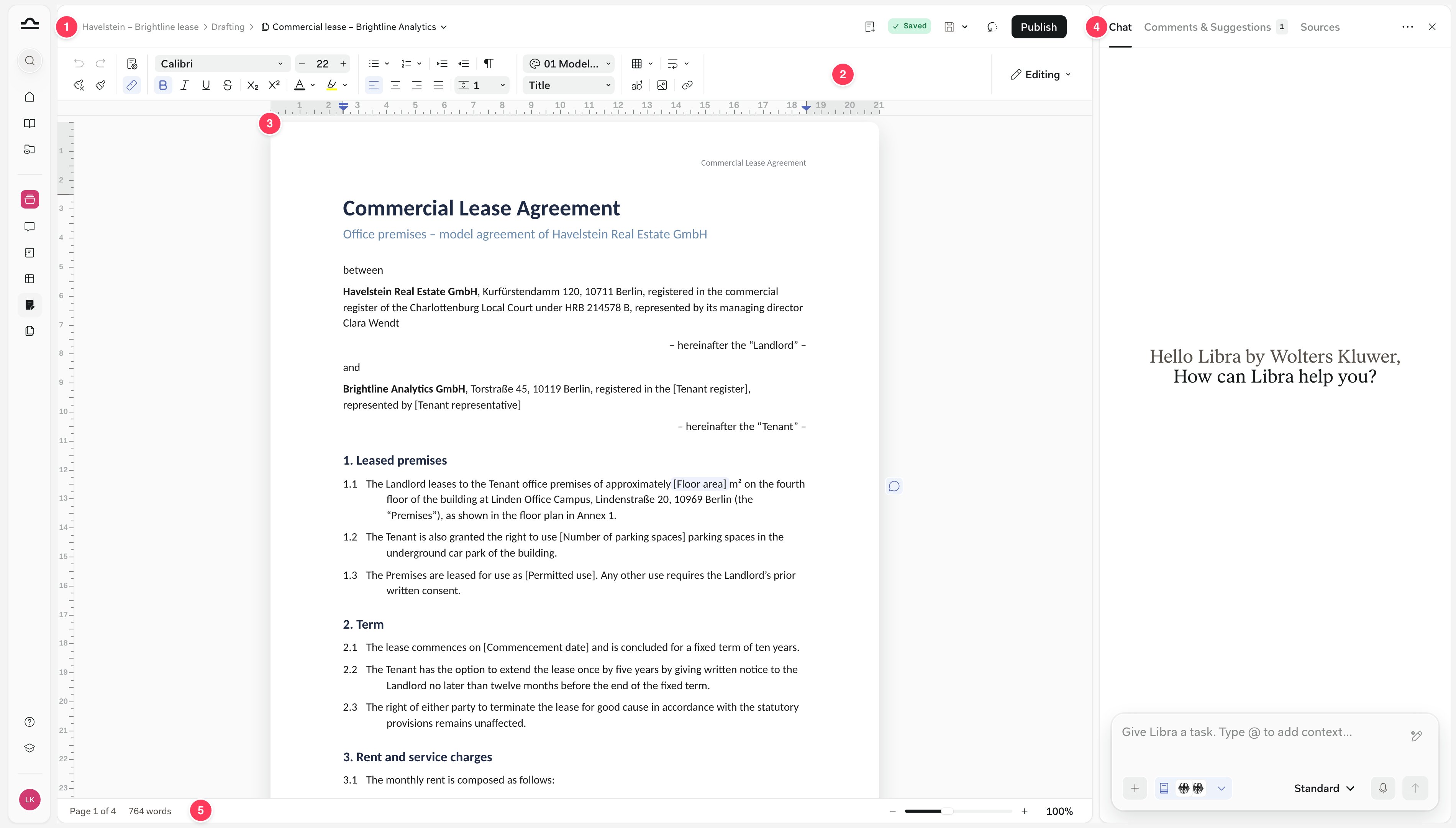
- Title bar: the project › Drafting › the document’s name. Drafting takes you back to the Drafting page, and the name opens the document menu. On the right: the save status, Save, History and Publish.
- Toolbar: formatting in two rows, ending in the Editing / Suggesting switch explained in Collaboration.
- Page: your document, laid out as pages, with comments and suggestions in the margin on the right.
- Right panel: three tabs, Chat, Comments & Suggestions and Sources. Page setup and History open here too, and ✕ closes it. The chat bubble at the bottom right brings it back.
- Bottom bar: the page you’re on, the word count (or the count for your selection) and zoom.
Format the document
The toolbar works the way you know from Word. Settings for the whole document, such as margins and columns, live in the Formatting panel.Text and paragraphs
The toolbar groups its controls from left to right. In a narrow window the groups fold into menus one at a time, from the right, but nothing disappears.
- Undo and redo, Clear formatting and Format painter.
- Settings: Page setup, which opens the Formatting panel, and Ruler.
- Text: font, size, bold, italic, underline, strikethrough, subscript, superscript, text colour and highlight.
- Paragraph: bulleted and numbered lists, indents, Show marks, alignment and line spacing.
- Styles: Theme and the paragraph style.
- Insert: table, break, footnote, image and link.
Text styles
The paragraph style menu works like Word’s style gallery. Each style shows in its own look, and the one you’re in has a tick.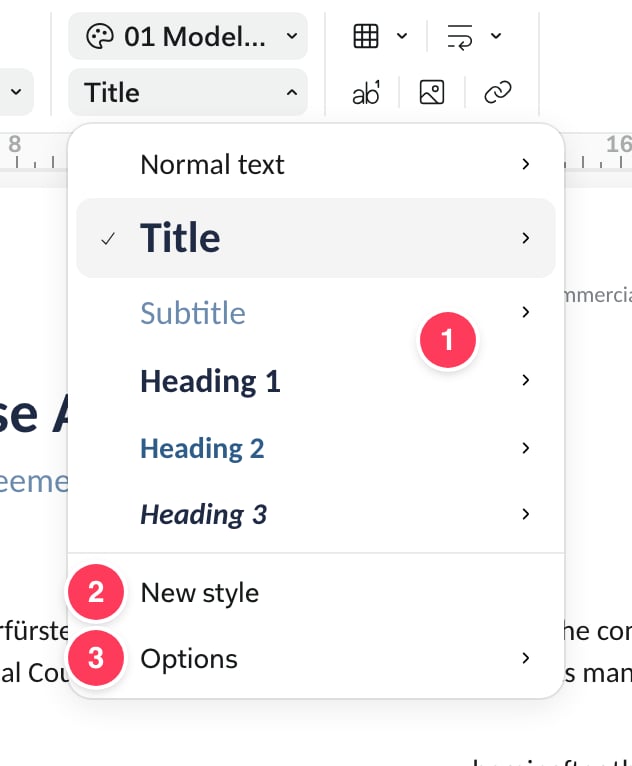
- The styles. The arrow next to each offers Apply with its shortcut, such as ⌘⌥2 for Heading 2, Update … to match, which redefines the style from the paragraph you’re in, and Rename.
- New style adds one of your own.
- Options: Save as my default styles, Use my default styles and Reset styles.
Lists and legal numbering
Numbered lists come with presets for legal documents. Open the arrow next to Numbered list, choose the jurisdiction at the top, then a preset.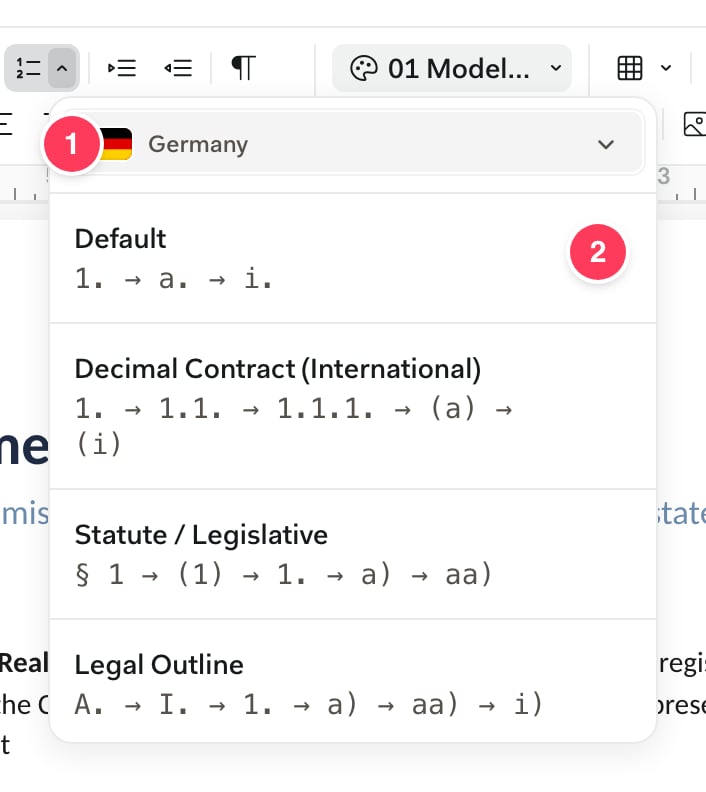
- The jurisdiction: Germany, Switzerland, Poland, the Netherlands, Belgium, Italy, Hungary, Romania, the Czech Republic, Slovakia or the European Union.
- The presets for that jurisdiction, each with its pattern. Decimal Contract (International) runs 1. → 1.1. → 1.1.1. → (a) → (i), and the German Statute / Legislative runs § 1 → (1) → 1. → a) → aa).
Page setup
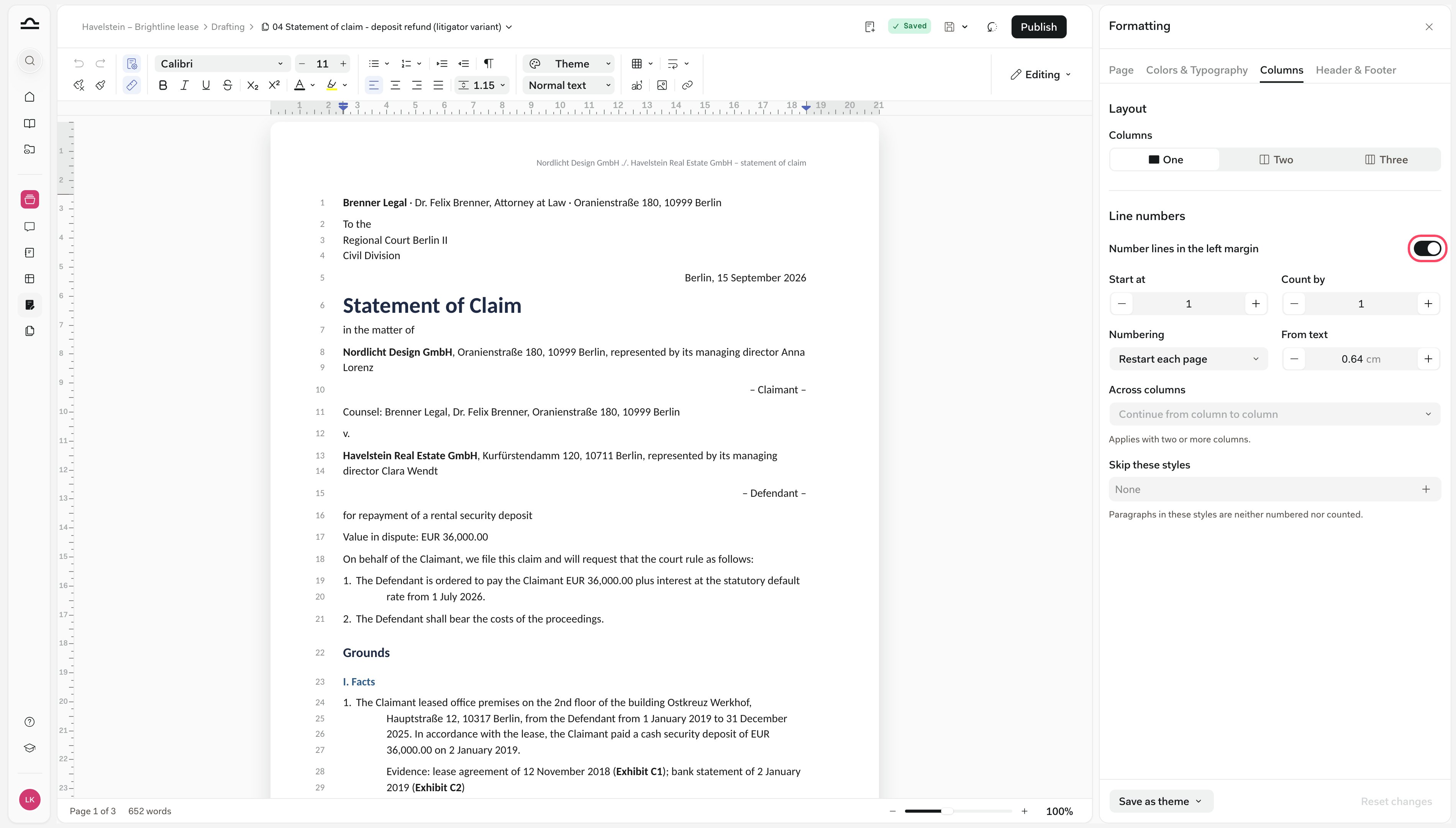
Page setup in the toolbar opens the Formatting panel on the right. Changes apply to the whole document straight away.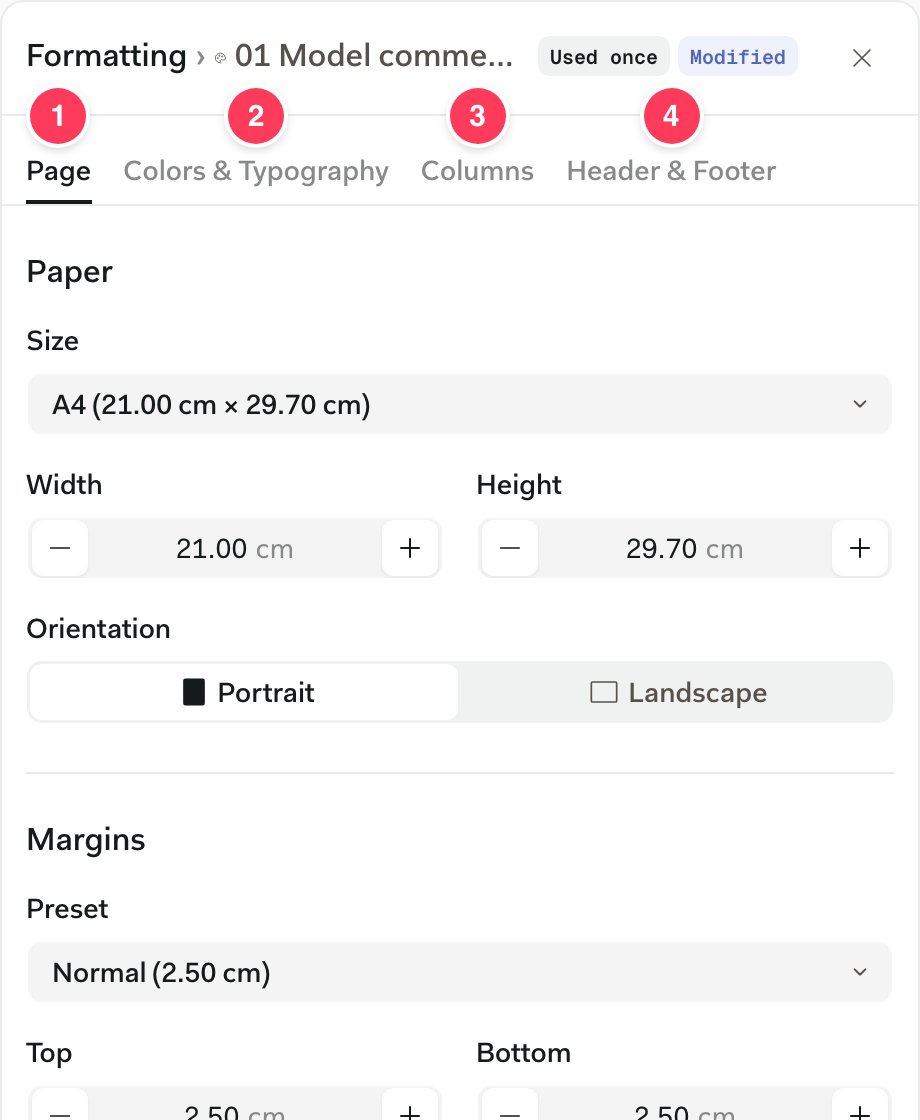
- Page: paper size and orientation, margins with presets such as DIN 5008 letterhead, a binding gutter, and mirrored margins for double-sided printing.
- Colors & Typography: the theme’s colours and text styles. See Apply and change a theme.
- Columns: one, two or three columns with spacing and a divider, and Line numbers for briefs.
- Header & Footer: header and footer distance, a different first page or odd and even pages, and page numbers.
Tables, images, footnotes and breaks
Insert, at the right end of the toolbar, adds a table, a break, a footnote, an image or a link. Click inside a table and its own toolbar appears above it.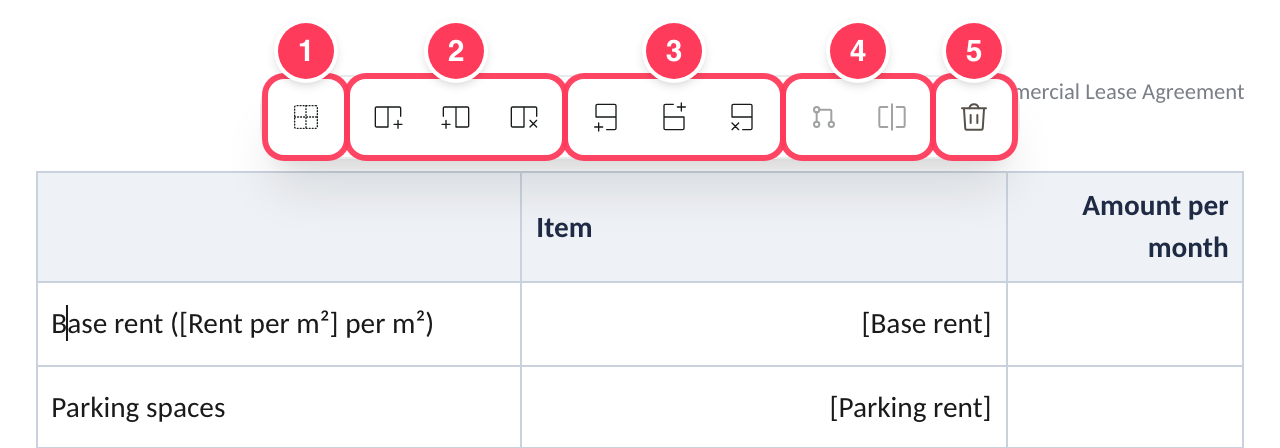
- Hide table borders, which keeps the grid invisible in Word too.
- Insert a column to the left or right, or delete one.
- Insert a row above or below, or delete one.
- Merge cells and Split cell.
- Delete table.
- Images: PNG, JPEG, SVG and other common formats, up to 20 MB. Click an image to resize it or change its Text wrapping.
- Footnotes: Insert footnote adds a numbered footnote at the bottom of the page and renumbers the rest. Footnotes with tables, lists or tracked changes open read-only.
- Breaks: a line break (Shift+Enter), a page break (Ctrl+Enter), or a column break (Ctrl+Shift+Enter) in a multi-column layout.
Work with Libra in the Editor chat
The Chat tab is the same chat you use everywhere in Libra, with its tools, research and Assistants. The difference: it works on the document you have open, including edits you haven’t saved, and changes it in place instead of writing a new file. It can still write new files: Draft document and Build spreadsheet in Tools create a Word document or an Excel sheet from the one you have open.Scoped changes
Select a passage before you ask, and Libra changes that passage only. The chat box shows a Selected Text chip with the word count, and Libra still reads the whole document for context. This is a scoped change. With clause 7.1 on minor repairs selected, “Make this more favourable to the tenant.” rewrites 7.1 and nothing else. To drop the selection, clear the chip with ×. In Editing mode, Libra’s changes go straight into the document, and the chat reports them on a card such as Libra changed 1 passage. Show changes steps through them on the page, with Revert and Revert all in the bar at the bottom. The card’s undo icon, Revert changes, takes back everything from that answer. Before Libra’s first change in a session, the Editor also saves a Before Libra’s changes version to Version history.Research in the Editor
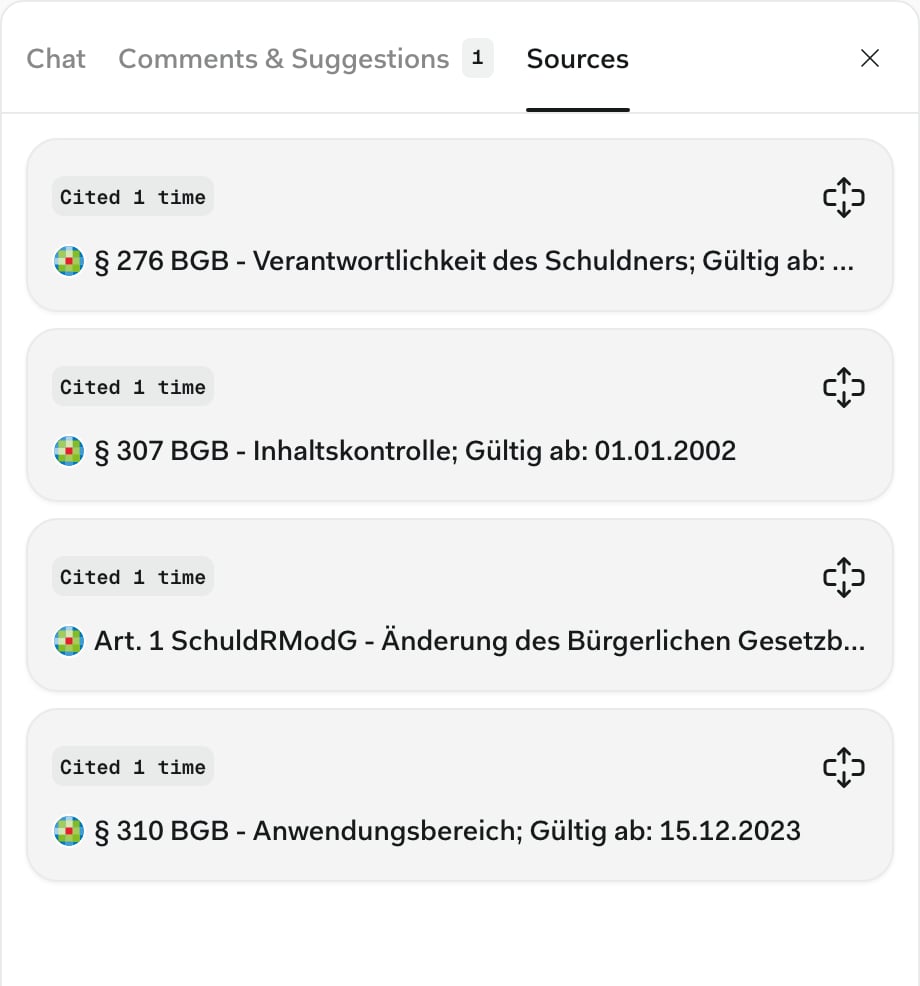
Switch on research sources in the chat box, as in any research chat, and ask about the clause you’ve selected. Libra answers in the chat, with citations to the sources it used.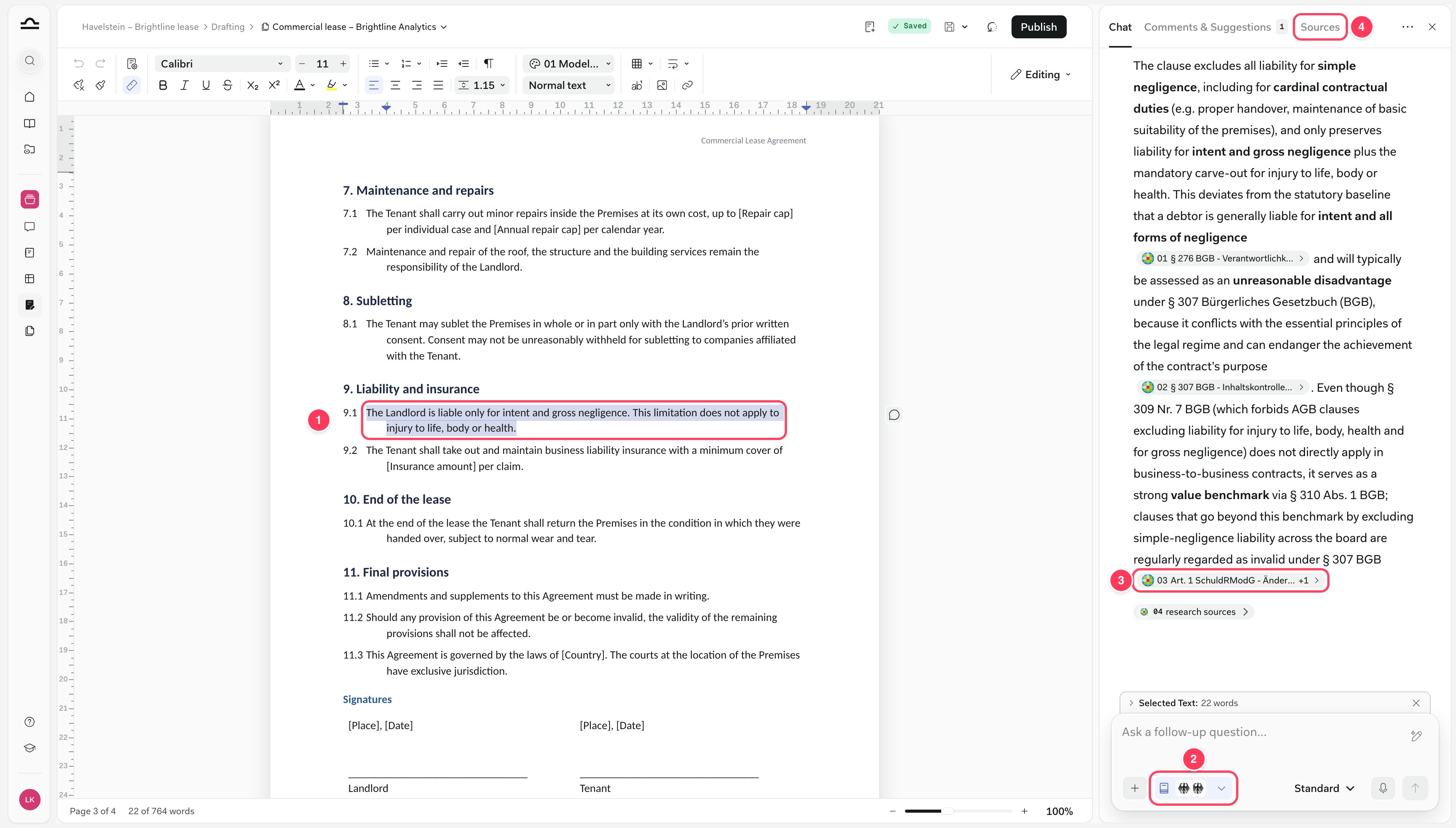
- The selected clause, here 9.1 on the landlord’s liability
- The research sources switched on in the chat box, here German Statutes and German Case Law
- A citation to one of those sources
- The Sources tab
Your document chats
Each document keeps its own chat history, separately for each user, and your chats stay private when you share the draft. The ⋯ menu at the right end of the tab row has Chat History, to search earlier conversations, New Chat, for a fresh one about the same document, and Show fullscreen, which continues the conversation in the main chat.Save, publish and restore
Saving keeps your work. Publishing decides what everyone else sees.Save
The Editor saves automatically 30 seconds after your last edit. Save in the title bar (⌘S) saves straight away as a named version, and comments and suggestions save the moment you add them.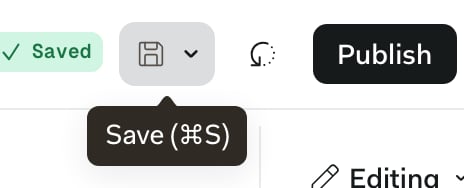
Publish
Publish saves and makes that version the one your team finds. It’s available after the first save.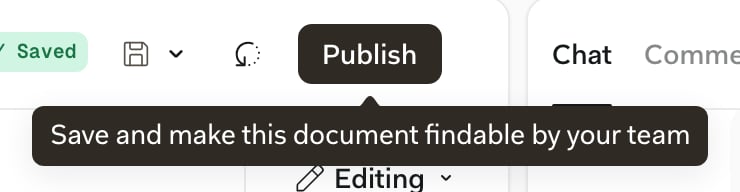
If Libra gives an outdated answer about a draft in another chat, publish it. Right after an upload, Publish waits until Libra has read the document: Preparing this document. You can publish it once it is ready.
Drafts you haven’t published carry a tag on the Drafting page, in Project files and in the file picker:
Version history
History in the title bar lists the saved versions: the Current version, numbered versions, any Before Libra’s changes version and the Starting point, which is the document before its first edit in the Editor. Hover a version for View, Restore, Download and the pin that keeps it.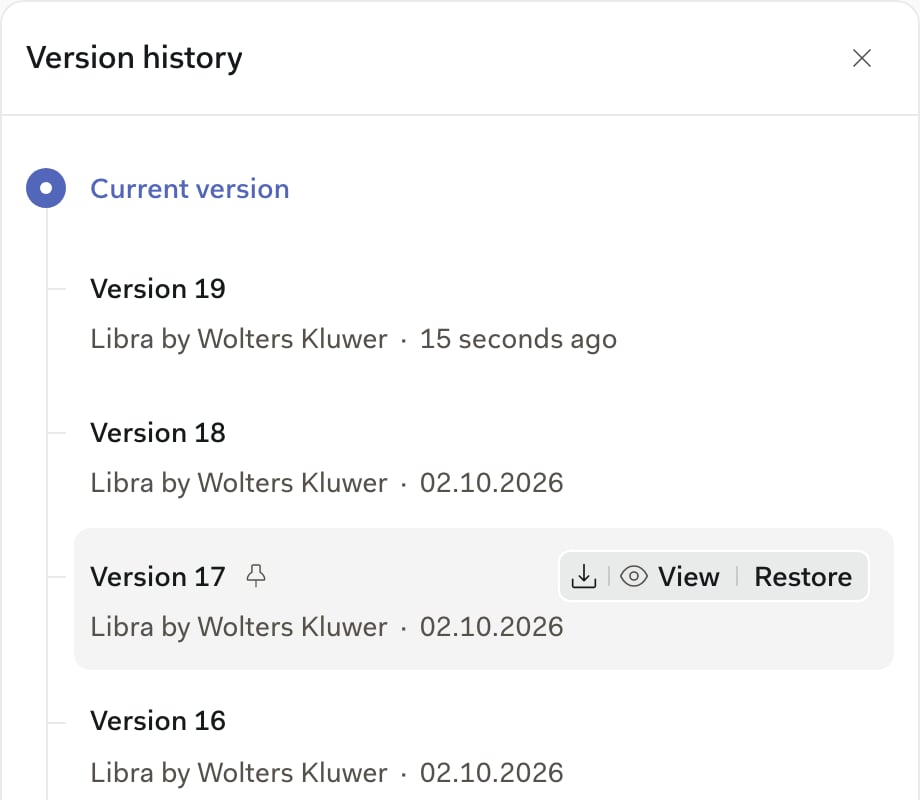
Download and print
Click the document’s name in the title bar to open the document menu.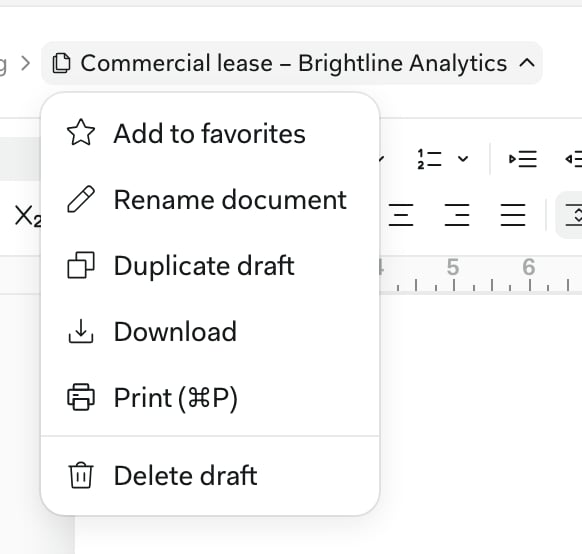
.docx, and Print prints it. There’s no PDF export; save the .docx as a PDF in Word. In a team, the menu also has Share, see Share a draft.
Common use cases
The Editor chat can do your formatting too. Ask with nothing selected, since page setup applies to the whole document. Stay in Editing mode, since Suggesting refuses page setup and changes to a table’s structure.Line numbers and margins for a brief
Line numbers and margins for a brief
“Number every line in the left margin, restart on each page, and set the left margin to 3 cm.” Libra switches on line numbers and sets the margin. Check them under Page setup, on the Columns and Page tabs.
Legal numbering
Legal numbering
“Renumber the clauses with the Decimal Contract (International) preset.” Libra applies real list numbering, so the clauses renumber themselves when you add one later.
A bilingual contract
A bilingual contract
“Put the contract into a two-column table without borders: English on the left, German on the right, one clause per row, cells aligned to the top.”A borderless table keeps each clause next to its translation, which page columns can’t, because their text flows from one column into the next. Libra builds up to 30 rows at a time, so ask for a long contract in parts.
Page setup for a letter
Page setup for a letter
“A4 portrait, DIN 5008 letterhead margins, a different first page, and page numbers at the bottom right.” The different first page leaves room for your letterhead, which you add by editing the first page’s header.
Heading styles in your house style
Heading styles in your house style
“Make every Heading 2 bold, 12 pt, with 12 pt space before.” Libra redefines the style, so every heading in it changes at once. With a theme applied, change the theme instead: see Apply and change a theme.
Next steps
Templates & Themes
Start every draft from your firm’s own documents, in your house style.
Collaboration
Share a draft, then work through redlines and comments.