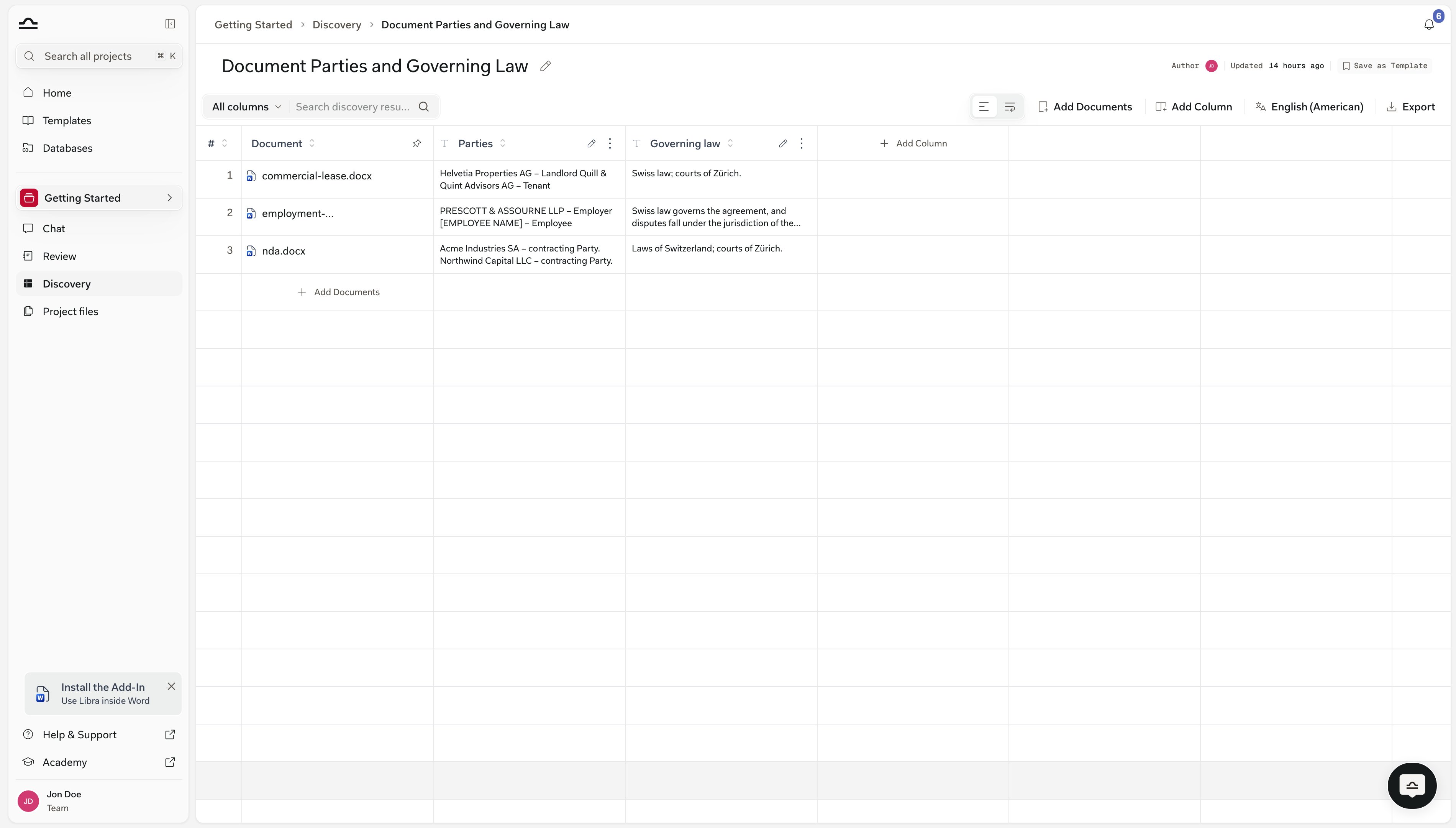
The Tools menu, Select files, and starting a Playbook, a Review or a Discovery without leaving the chat.
Tools is one menu for everything you attach to a chat — files from your computer, files Libra already holds, Assistants, Workflows, connected sources.It is also the fastest way to start a Playbook, a Review or a Discovery: arm it, say what you want, send.
Whatever you create auto-attaches as @-context for your next message, so “now draft a partner email on high-risk Topics” just knows.
+ Tools sits under the message box, to the left of Research. Click it and the menu drops down.The eight entries fall into three jobs: bring something in (the first two), hand the chat to something that already knows how to work (the next two), or start a new piece of work (the rest).
Upload files from computer
Opens your file browser and attaches what you pick to this message.
Select files
Opens a browser over everything Libra already holds — your projects, your databases, your connected sources. See Select files.
Assistants
Hands the conversation to a custom Assistant: your “M&A specialist”, your “house style writer”. See Assistants.
Workflows
Runs a multi-step procedure — onboarding, NDA drafting, and the rest. See Workflows.
Opens a submenu: Review (Check document based on a playbook) and Discovery (Extract data from multiple document). Either one arms a badge in the composer row.
Draft document
Arms a Word Document badge, so what you ask for next comes back as a .docx file rather than a chat answer. See Word documents from chat.
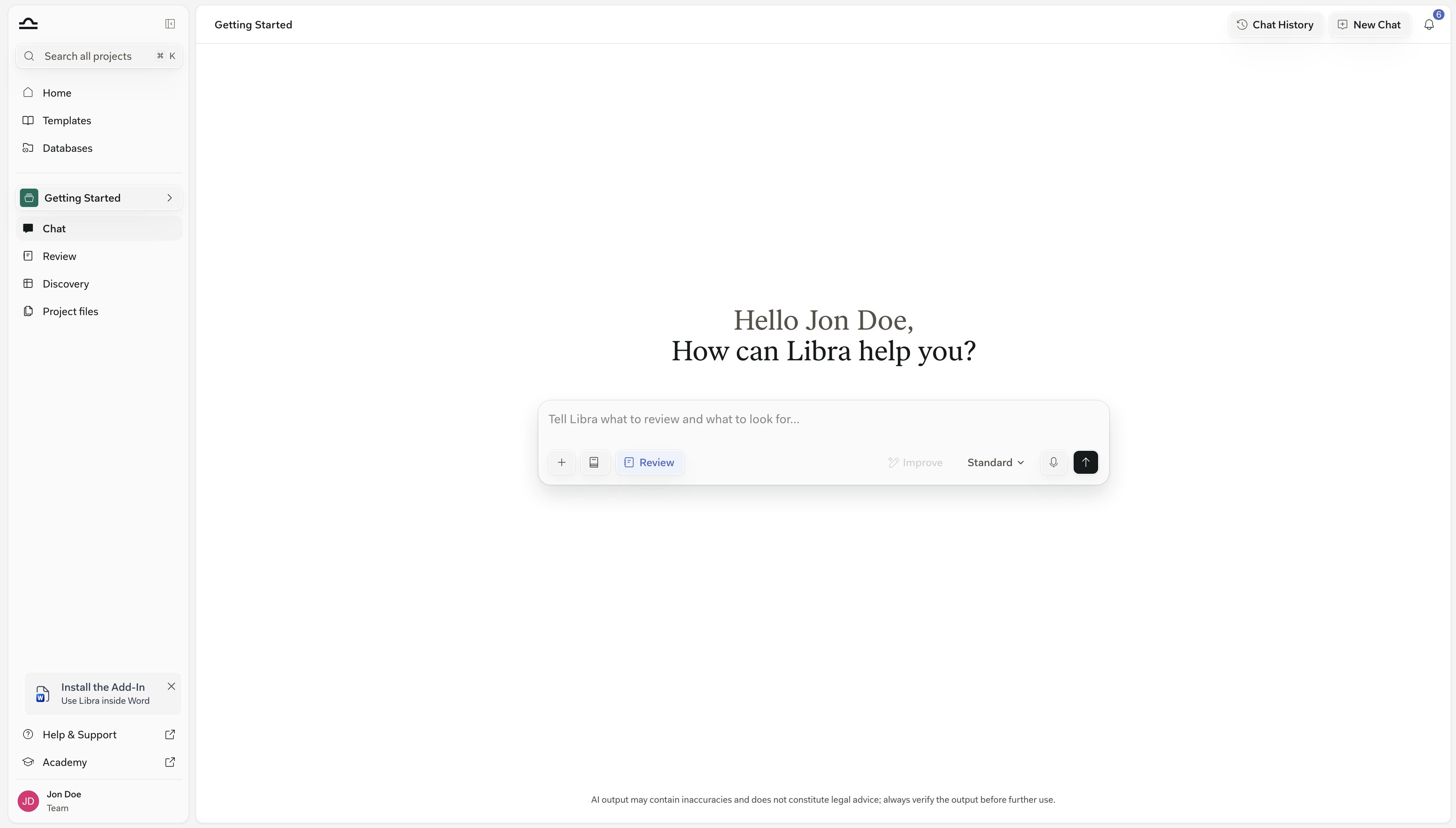
Arming a creation mode shrinks Tools and Research to icons, shows a badge naming what you are about to create, and changes the placeholder — a Review reads Tell Libra what to review and what to look for….Click the badge again to cancel. For running a Review against an existing Playbook, see Reviews from chat.
Not every entry is there for every team. What the menu offers depends on your plan, on what your administrator has switched on, and on which sources you have connected.
Reach for Select files when the document is already in Libra rather than on your laptop — it opens a full browser instead of your computer’s file dialog.The left rail groups everything by where it lives; the list beside it is one row per file.
Group
What it holds
Recents
What you have worked with lately, whichever source it came from.
Project files
One entry per project you can open, each with its file count. The project you are chatting in is marked Active.
Databases
One entry per database you can read, each with its file count.
Rows are per file; the list sorts by Last updated, filters by File type, and the footer offers Attach entire project and Attach.Bringing in a database is not the same as attaching its files. It adds one search source that Libra queries while it answers, so a database of thousands of documents costs exactly one source, the same as a small one.You can have at most ten search sources on at once. Turn on an eleventh and Libra says “You can search at most 10 sources at once” and leaves it off. Documents and folders you attach directly are not search sources and don’t count.If the answer’s activity list says Some databases could not be fully searched, Libra didn’t get through everything you selected — treat the answer as possibly incomplete.
Creating a Playbook, a Review or a Discovery takes a little more than a prompt.
Requirement
Why, and what you see without it
A project
The Review or Discovery is filed there; a Playbook goes to your own library. Without a project selected, Start analysis and Create playbook both stay greyed out: Select a project to create reviews or discoveries.
Edit access to it
Reviews and Discoveries only — view-only members get You need edit access. Ask a project admin for edit rights or switch projects. Create playbook works in a view-only project, because a Playbook is a library template rather than a project file.
A saved chat
With Chat History off, every conversation is a Temporary Chat and creation is blocked: Resource creation is disabled for temporary chats.
A paid plan
On Starter all three entries are disabled and hovering one offers an upgrade to Professional. See Subscription.
Documents attached before you send
A Review runs against whatever is on the message; with nothing attached Libra asks for the document instead of starting. A Discovery has nothing to extract from.
With those in place, you can arm the mode yourself from + Tools or just write the prompt and let Libra choose. Both land in the same flow.
Explicit, from the Tools menu
Click + Tools, then Start analysis and pick Review or Discovery — or Create playbook for a Playbook. The armed badge appears in the composer row; type your prompt and send.
Implicit, Libra picks
Type a prompt that implies a Review or a Discovery — “compare these contracts on confidentiality terms”, “check this against our standard NDA terms” — with documents attached. Libra decides which tool to call, and a Review still goes through the Playbook chooser.
A Playbook is a saved Review framework: the Topics you negotiate, the Positions you would accept for each, and the Rules that test them.
1
Pick Tools → Create playbook
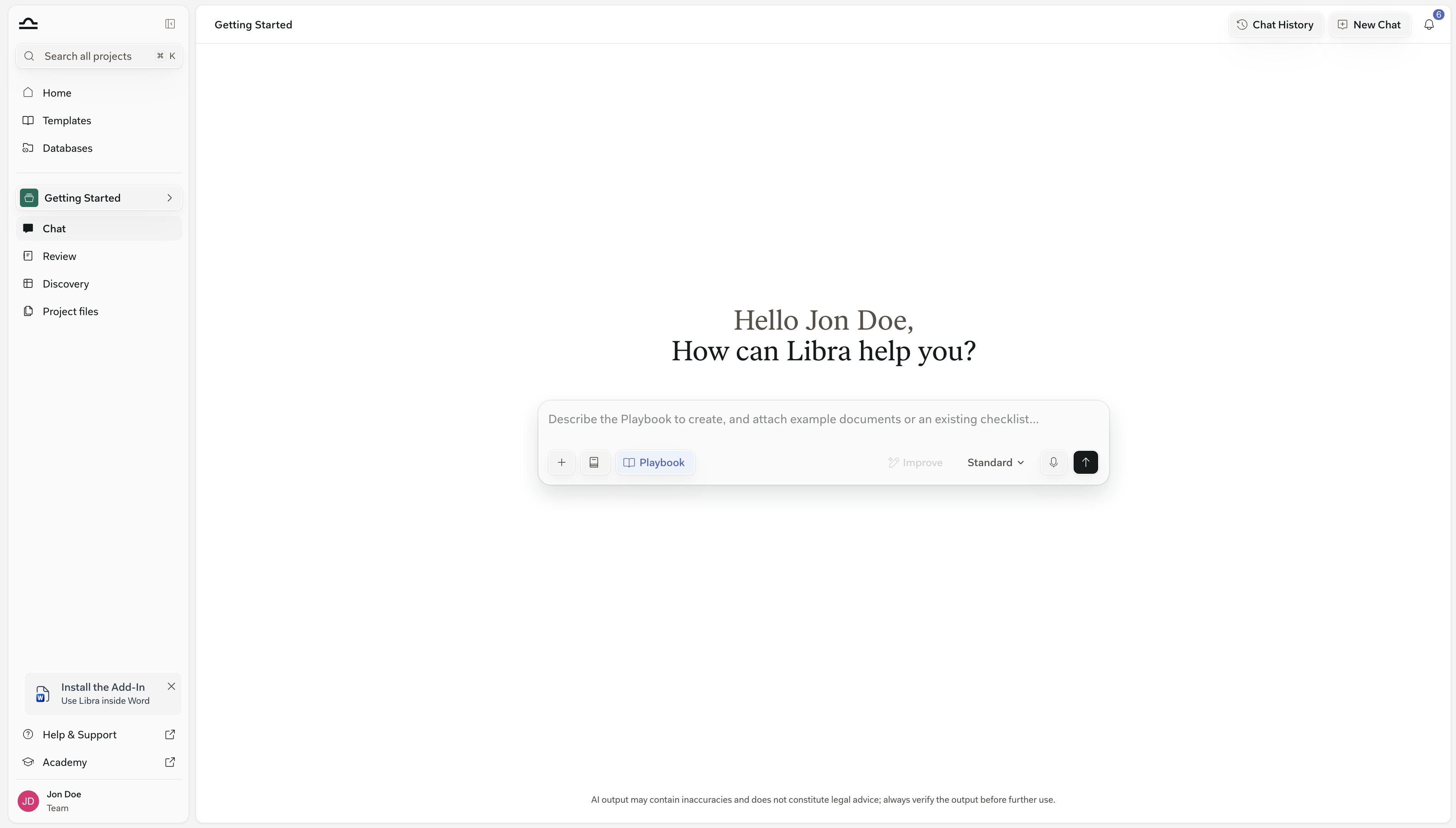
A Playbook badge appears in the composer row, and the placeholder changes to ask for the Playbook you want and any documents to work from.
2
Say what it should check, and attach anything to work from
Name the contract type and the side you act for — “a Playbook for reviewing standard German employment contracts from the employer’s side, covering working time, remuneration, probation and termination”.Attach your firm’s checklist or positions document and Libra derives the Topics, Positions and Rules from it.
3
Refine it in the same conversation
Libra answers with a Playbook created card listing the Topics. Keep going in chat to add, rename or delete Topics; the card returns as Playbook updated with the change applied.
4
Use it
The Playbook is saved and attached to your next message, so you can run a Review against it straight away. It also appears on the Review page under My Playbooks and in the Templates library.
Arm Review when you have the documents in hand and a Playbook to test them against — six leases checked on notice periods, say.On the way, Libra stops once to ask which Playbook to apply.
1
Pick Tools → Start analysis → Review (or just describe what you want)
A Review badge appears in the composer row.
2
Attach the documents and write the prompt
Drop in the contracts and say what to check — “review these against our standard NDA terms”, or “check confidentiality, term, and termination clauses”.
3
Choose the Playbook Libra should apply
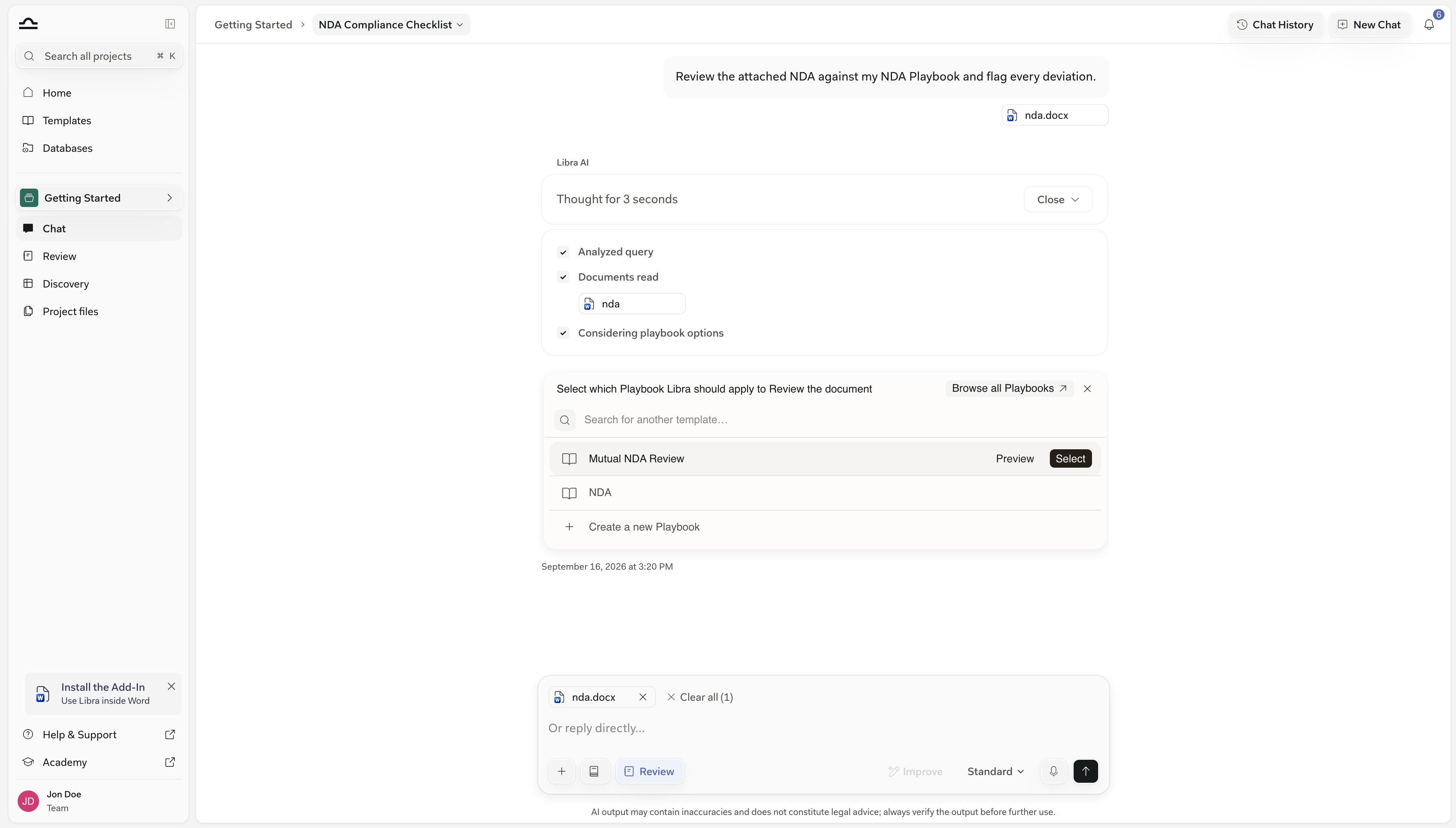
Chat Reviews always run against a Playbook, so Libra stops and asks you to pick one. Hover a row for Preview, which opens that Playbook read-only, and Select, which commits.Attach exactly one Playbook yourself and Libra skips this step. Reviews from chat covers the chooser in full — how it ranks Playbooks, and how it waits.
On the chooser
What it does
Search for another template…
Filters the rows by name.
Browse all Playbooks
Opens the full library.
Create a new Playbook
Drafts a Playbook and stops. Ask for the Review once you are happy with it.
4
Watch the Review fill in, Topic by Topic
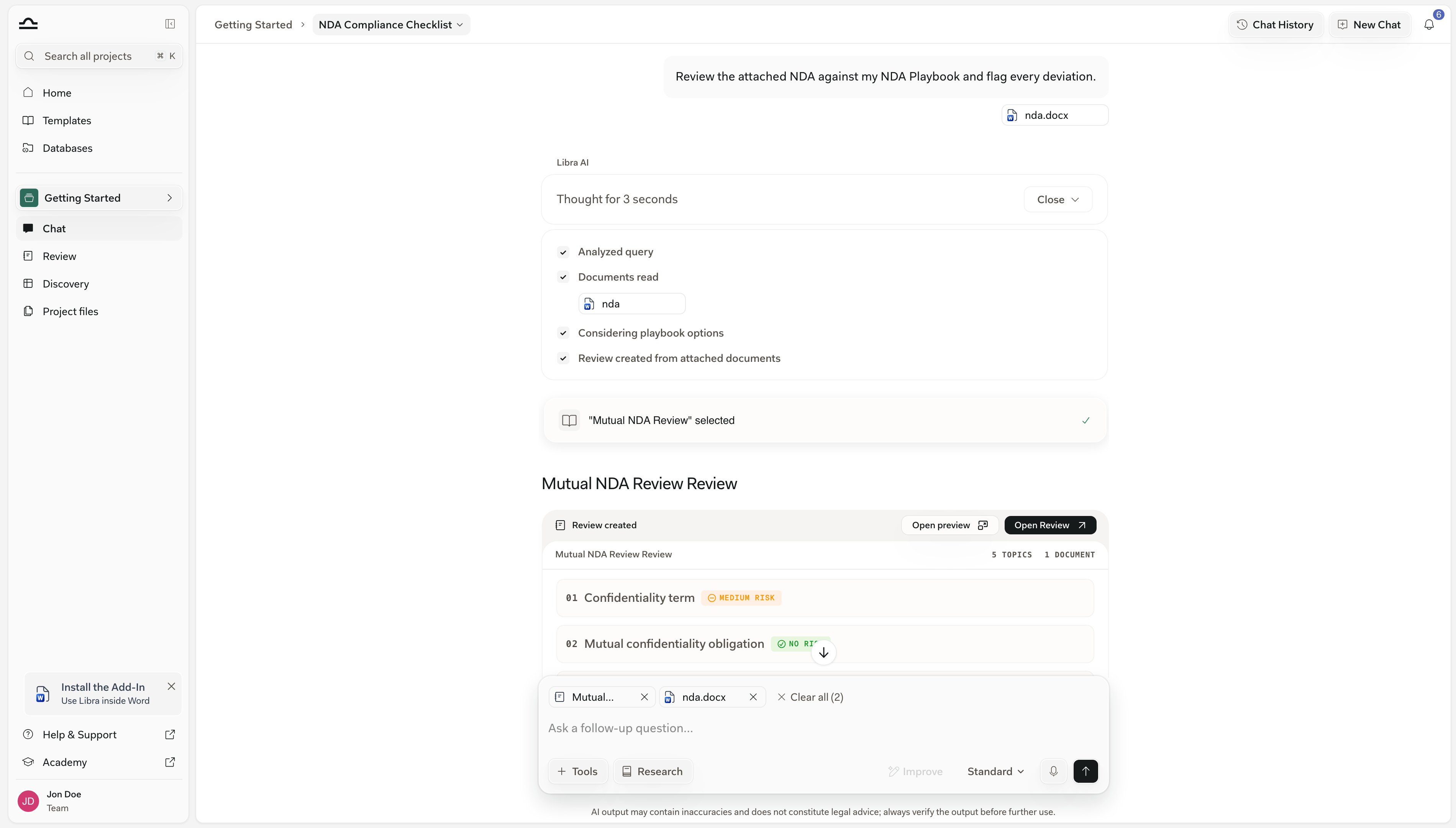
A Review created card appears with the Review title and its Topic and document counts. Each Topic streams in as a numbered row with a risk tag, showing PENDING until it resolves. Start reading straight away; clicking a row jumps to that Topic.
5
Open Review for the full screen
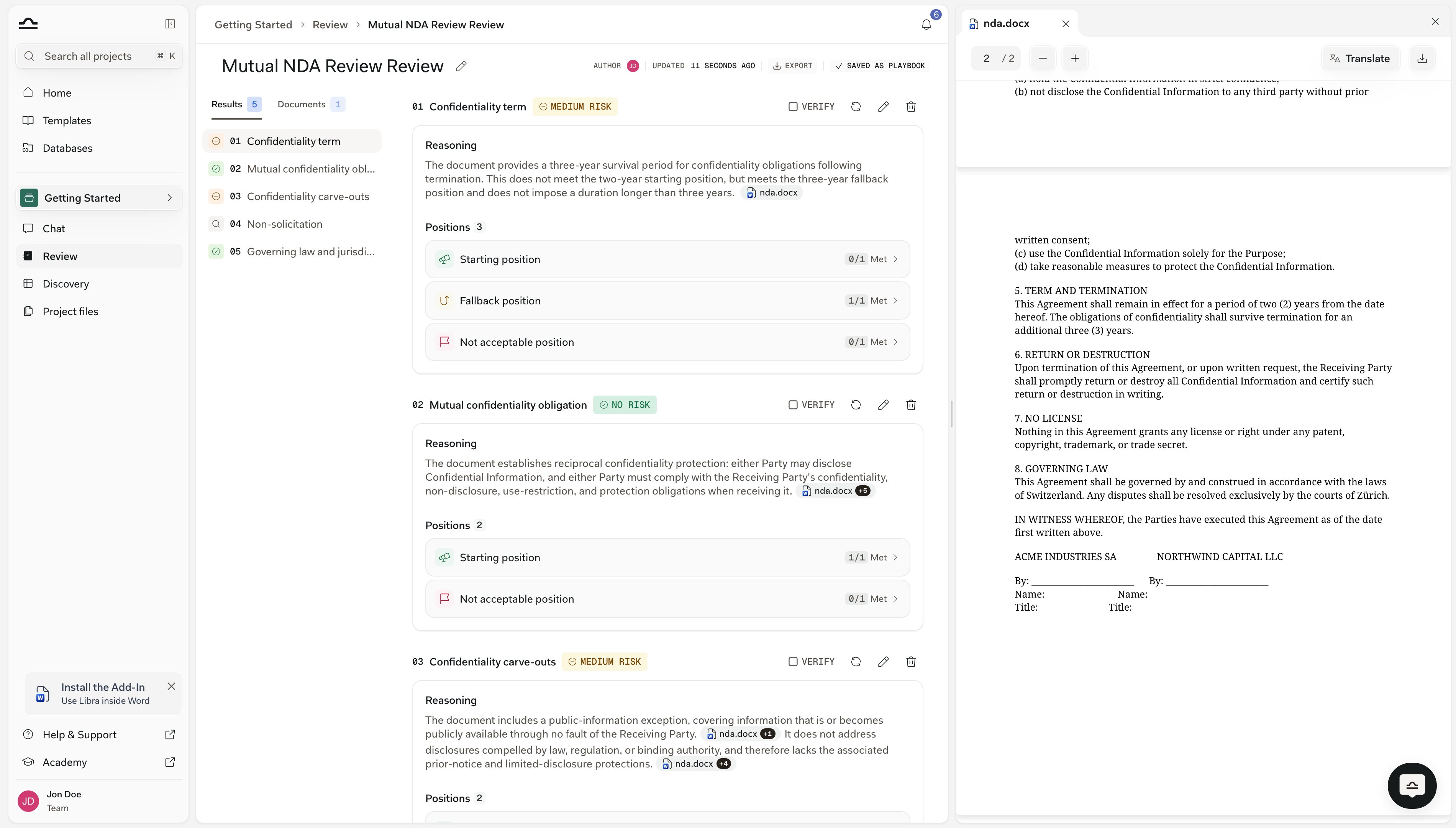
Open preview shows the finished Review read-only, in the chat. Open Review opens the full screen: every Topic with its reasoning and citations, Positions with Met counts and a Verify checkbox, and buttons to add, edit, re-run or delete Topics and to Export.Editing a Topic asks whether to Update playbook & review or change Only this review, so an improvement you make while reading can flow back into the Playbook for next time.
6
Auto-attached for follow-ups
The Review is attached to your next message, so “now draft a redline email summarising the high-risk Topics” knows about it.
Reviews started from chat are scoped to the chat’s project and filed in that project’s Reviews folder in Project files.
The flow is shorter, because a Discovery needs no Playbook: Libra designs the columns from your prompt.
1
Pick Tools → Start analysis → Discovery (or just describe what you want)
A Discovery badge appears in the composer row.
2
Attach the documents and describe the columns
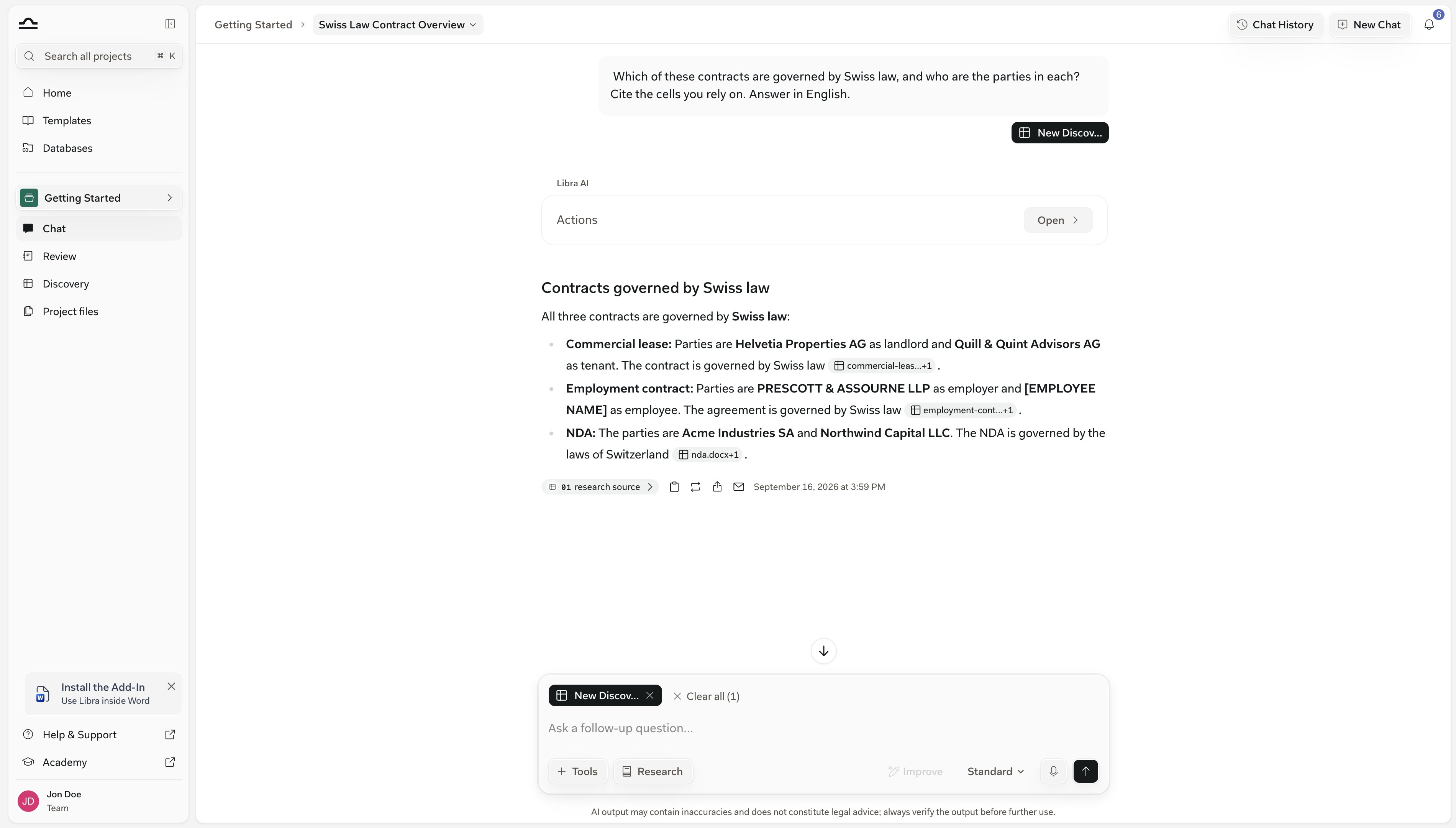
“Extract employee name, job title, and home office location for each contract”. Libra builds a Discovery with those columns and runs it across every document on the message.
3
Send
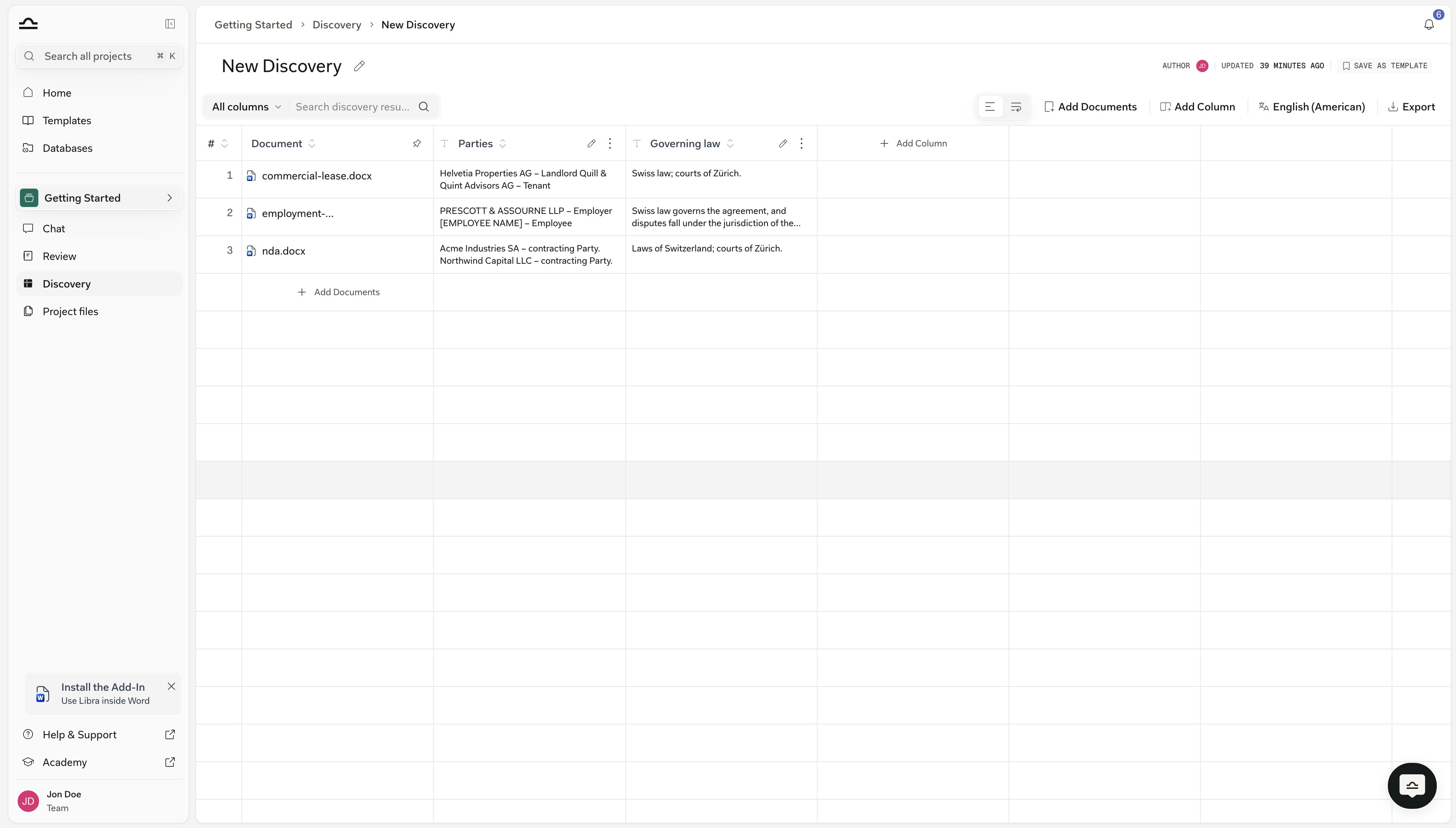
Libra runs the extraction and shows a Discovery created card. One row per document; columns appear as they are extracted.
4
Open Discovery to refine
Open Discovery opens the full view. Add or remove columns; the Discovery re-runs immediately for any new one.
Draft document turns the answer into a real Word file, and every team has it — no admin grant needed. Arm it from + Tools, describe what you want, and the .docx arrives on a card in the conversation.
On the card
What it does
Preview
Opens the document in the side panel. It used to read Open in sidebar.
Download
Saves the .docx to your computer.
Add to project
Files a copy in the chat’s project. Disabled, with This project is view only, when you cannot edit it.
On a narrow panel the two secondary actions drop their labels and keep them as tooltips, so the card stays on one row.The draft takes the recent conversation into account, so you can say “turn what we just discussed into a memo” instead of restating it. Afterwards Libra remembers what it drafted: “make the termination clause stricter” works on the document it just wrote.A document drafted from research spells its sources out in full — the title, the provision or case, and the link. The short reference markers you see beside an answer on screen mean nothing once a file leaves Libra, so they never reach the .docx.
A document built from your own Word template keeps its logo, theme fonts and letterhead. Libra writes the body into the template itself instead of rebuilding the look on a blank page.The card reads Styled with your template when it did; click that to open Settings → Templates. Ask for a plain document and you get one — the template is a default, not a rule.
Attach a .docx and ask for a redline: the tracked changes now land on signature blocks, form rows and text boxes, not just ordinary paragraphs.Long agreements are read in full, not from a shortened copy. Attach more than Libra can read at once and it searches the files, then opens the ones the task needs.When a sweep changes some occurrences of a phrase but not all of them, Libra says so instead of reporting a clean run.Libra can also read what reviewers left in the file. Ask it to summarise the comments or the tracked changes in an attached .docx, and the steps strip above the answer shows Reading Word comments or Reading tracked changes.
A Review or Discovery you ran once is worth turning into a template if you will run it again on next quarter’s leases. What that takes depends on which one you made.
What you made
How to keep it
A Review
Already reusable — the Playbook behind it is in your library, and the Review header reads Saved as Playbook instead of offering a save button.
A Discovery
One click: Save as Template in the header, next to Author and Updated. No dialog — it takes the Discovery’s title and columns and briefly confirms Saved as Template.
Either
Templates land in the library under Discoveries or Reviews. Practice areas and tags are set on the template there — see Practice areas & tags and About templates.
“Review this NDA” leaves Libra guessing which Playbook fits. “Review for confidentiality scope, term length, and remedies for breach, flagging deviations from a standard buyer-friendly NDA” narrows the chooser’s ranking and gives a focused Review.
Preview before you select
Preview opens a Playbook read-only in place. Two Playbooks with similar names are much easier to tell apart from their Topics than from their titles.
One Review or Discovery per chat
More than one works, but the chat fills up with cards. Start a follow-up chat for the next one.
Use Reference in chat for follow-ups
Once a Review or Discovery exists, attaching it as @-context gives precise, citation-backed answers. See Reviews from chat and Discovery from chat.