

Share a template and its theme
Share a drafting template from its ⋯ menu in Templates › Drafting, or with Share in the template editor. You share with people and groups, or with the whole team under General access, as with any template.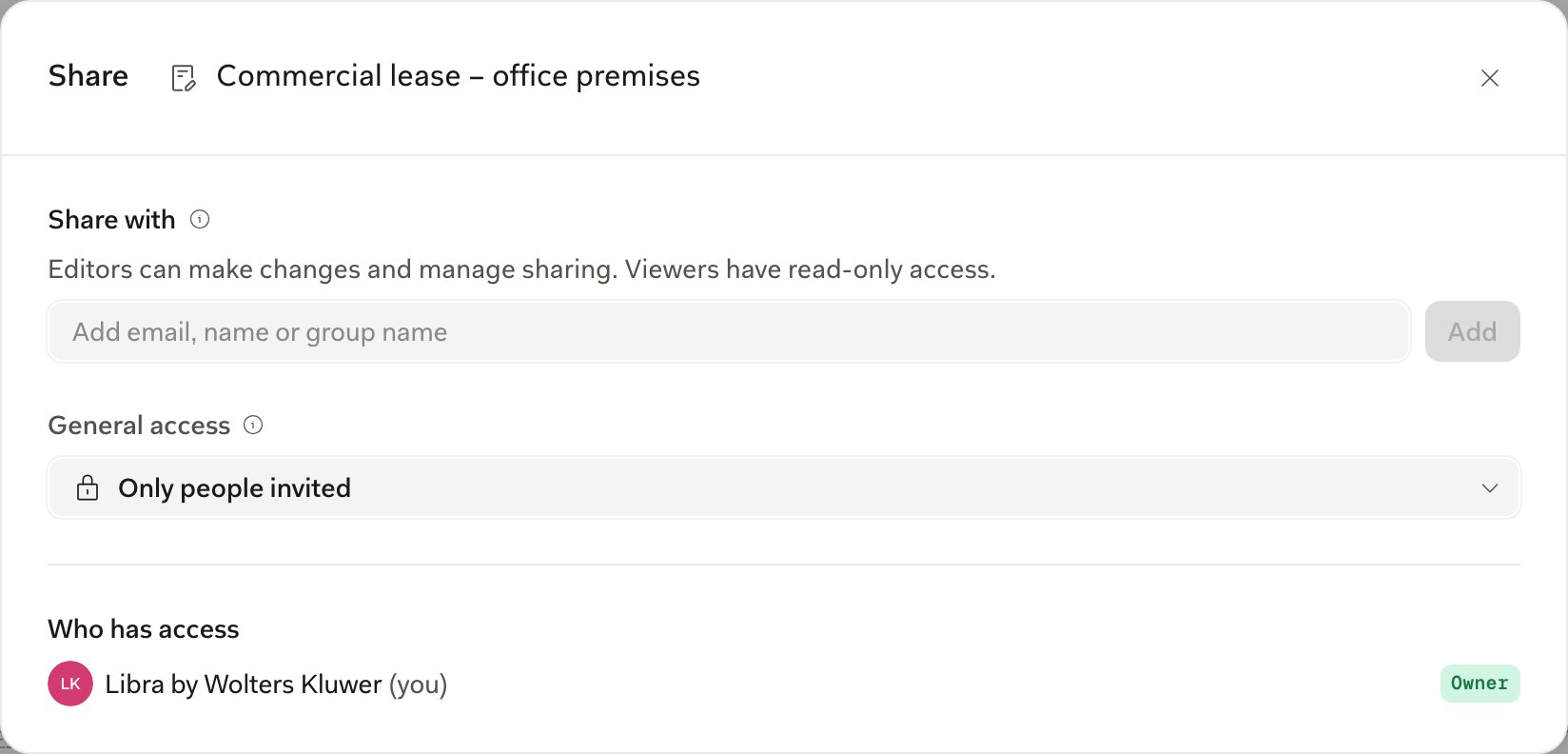
Only the author can delete a template. A recipient who no longer needs it can Remove from my templates, and stars stay personal to each user.
A theme is only ever shared through the templates that use it. The recipient sees it tagged Shared and can apply or duplicate it; with edit access, they can change it for everyone. For the sharing dialog itself, see Starring & sharing templates.
Share a draft
Share in the document menu (click the draft’s name in the title bar) shares the draft’s project, not just the draft. Everyone you add gets the whole project, including this draft, while your chats stay private.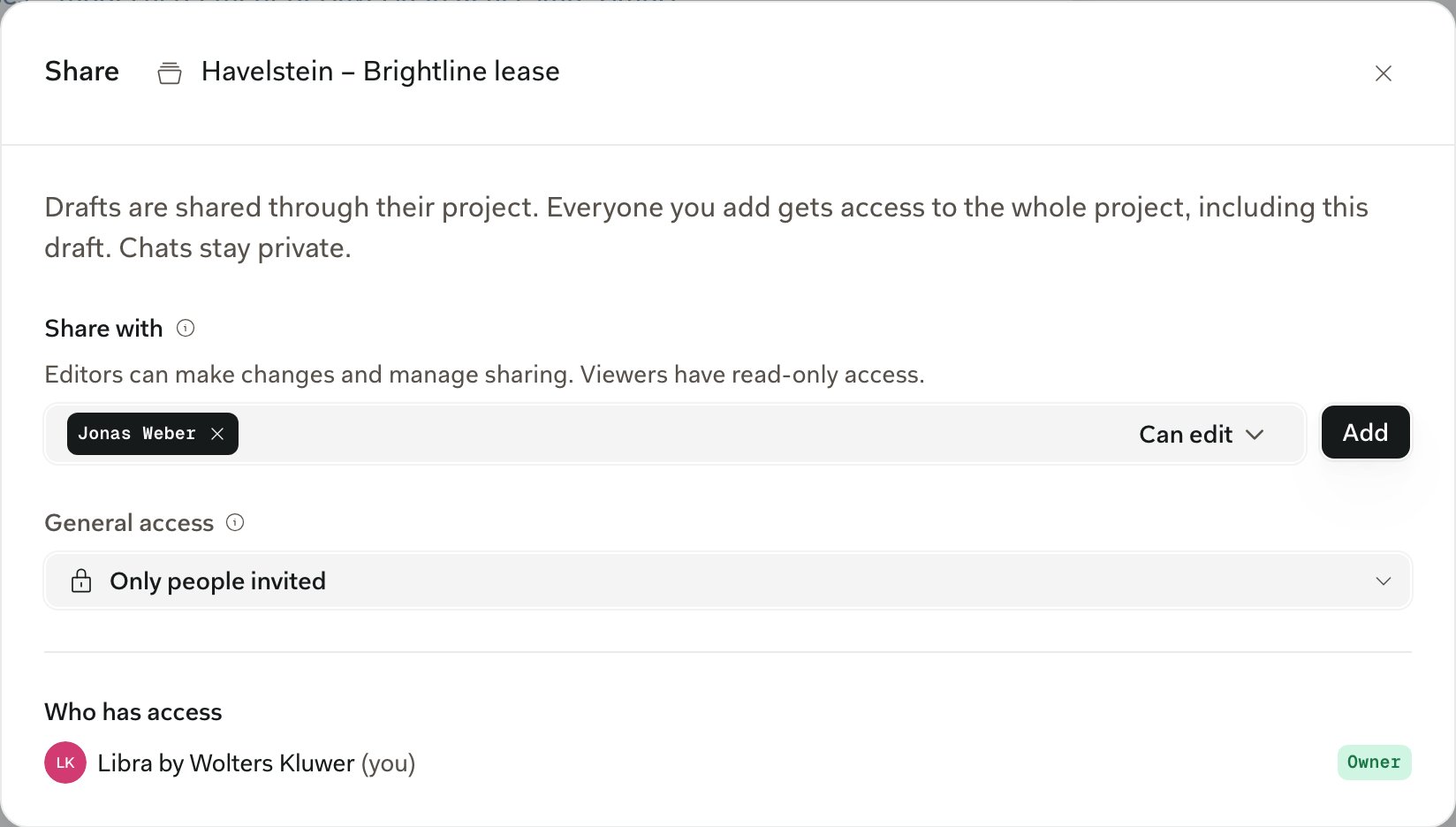
One editor at a time
Two people can’t edit the same draft at the same moment. If a colleague saves while you have it open, a banner tells you, such as Anna saved a new version of this document, and the last save wins. Agree who edits when. Version history keeps every saved state if you need to go back.Editing or Suggesting
The switch at the right end of the toolbar sets how changes land, yours and Libra’s alike.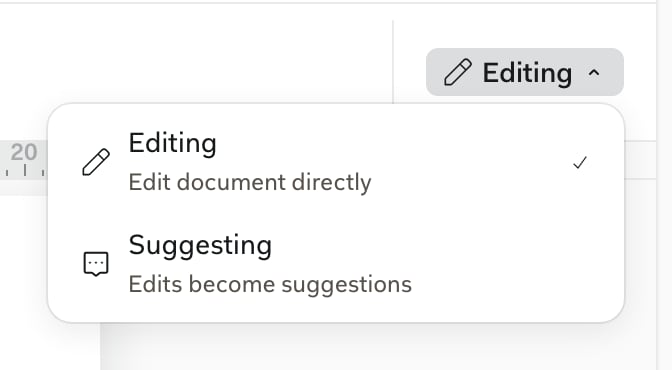
Suggesting tracks your typing, new and merged paragraphs, images and line breaks. Alignment, spacing, indents, lists and paragraph styles become suggestions too. Tables, footnotes and page or column breaks need Editing, and bold, fonts, colours and Theme go in untracked, as in Word.
Work through redlines
Open the counterparty’s Word file from Project files, and their tracked changes and comments appear in the margin, just as in Word. Each suggestion has a red marker in the margin, and comments a blue one. Click a marker or the marked text, and its card opens in the Comments & Suggestions tab on the right. You accept or reject on the bar at the bottom of the page.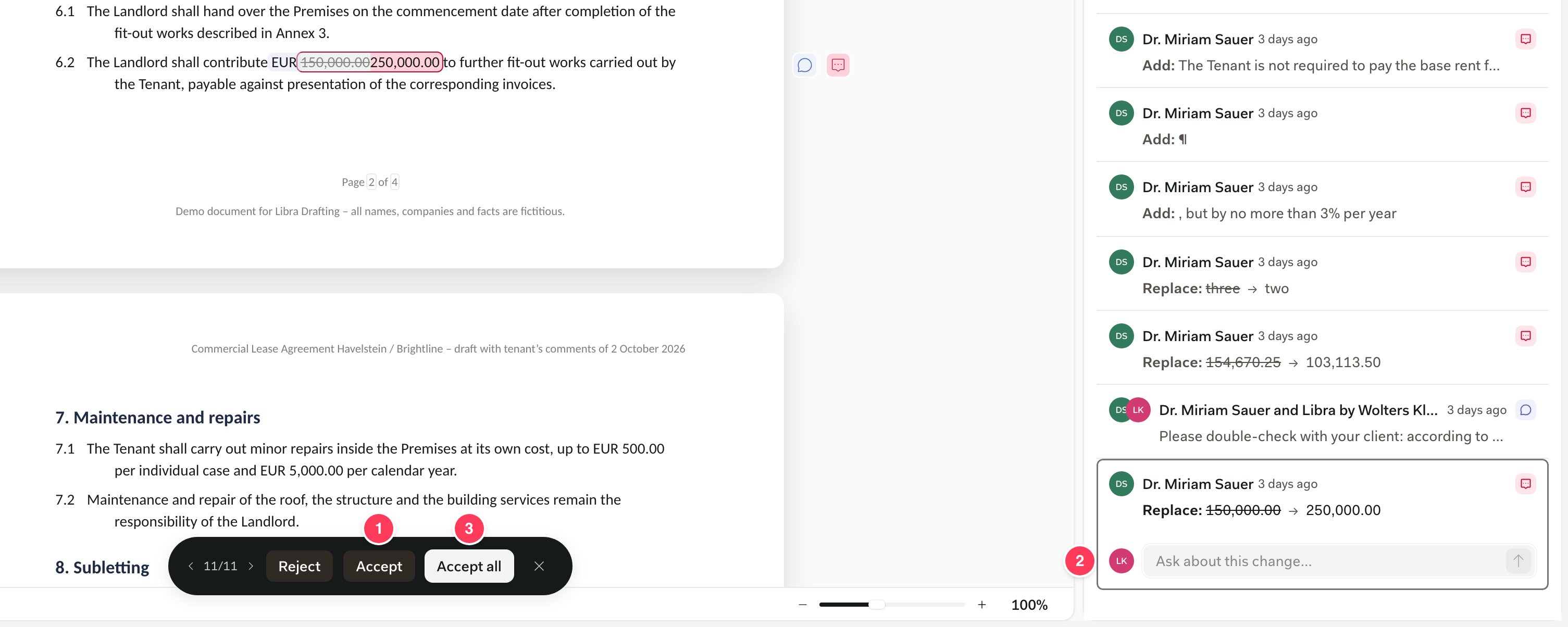
- Accept, or Reject, on the bar
- Ask about this change…, a thread for your colleagues
- Accept all
- The bar steps through every suggestion with ‹ and ›, in Editing and Suggesting mode alike. ✕ hides it.
- With a suggestion or comment selected, ↑ and ↓ move between them, Enter accepts or resolves, and Backspace rejects or deletes your own comment.
- Ask about this change… on a suggestion card starts a thread with your colleagues. It doesn’t ask Libra.
Comments
Select text and click Add comment in the margin, or Comment on an image. Colleagues reply in the thread, Resolve closes it and Reopen brings it back. You can edit or delete your own comments.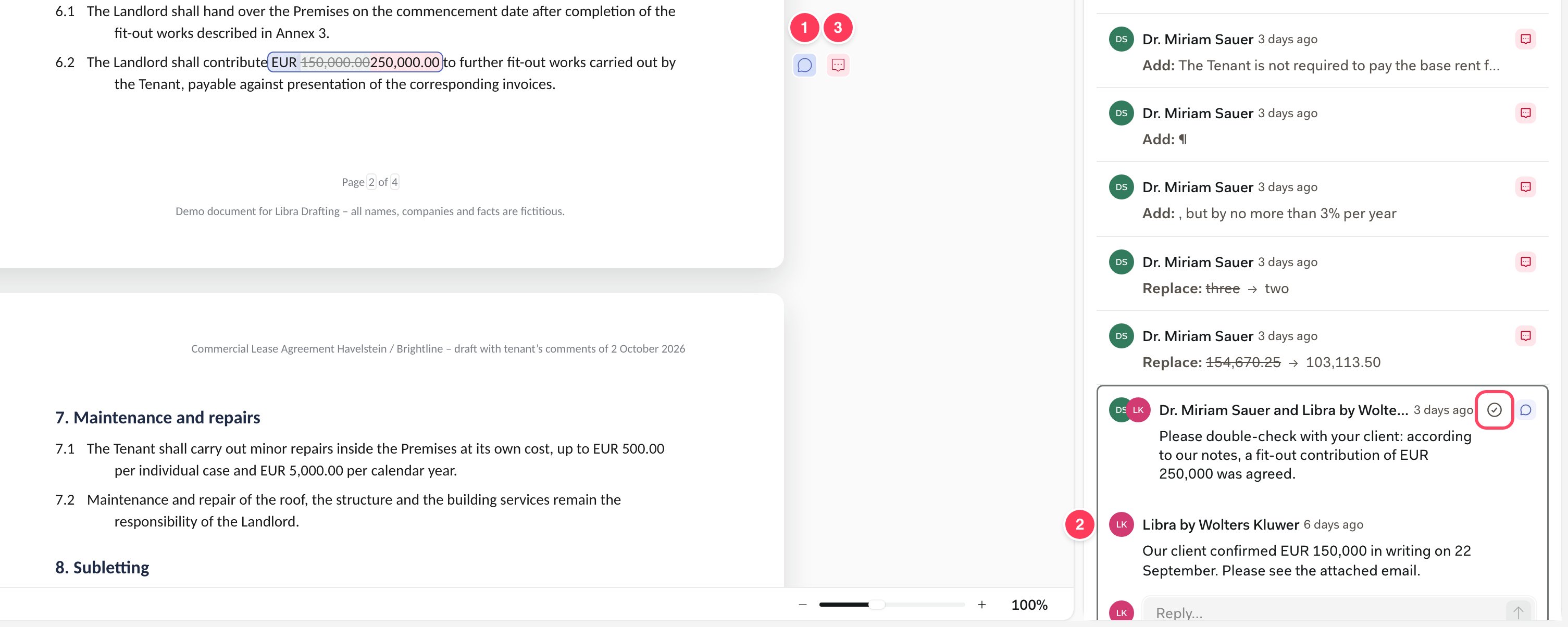
- The comment’s marker in the margin
- The thread in the right panel, with Resolve at the top right and the Reply… box below
- The marker of a suggestion on the same clause
The Comments & Suggestions tab
The Comments & Suggestions tab in the right panel lists every comment and suggestion in the draft. Filter by All, Comments, Suggestions or Resolved (← and → switch filters), and click a row to expand it in place. All lists them in the order they appear in the document.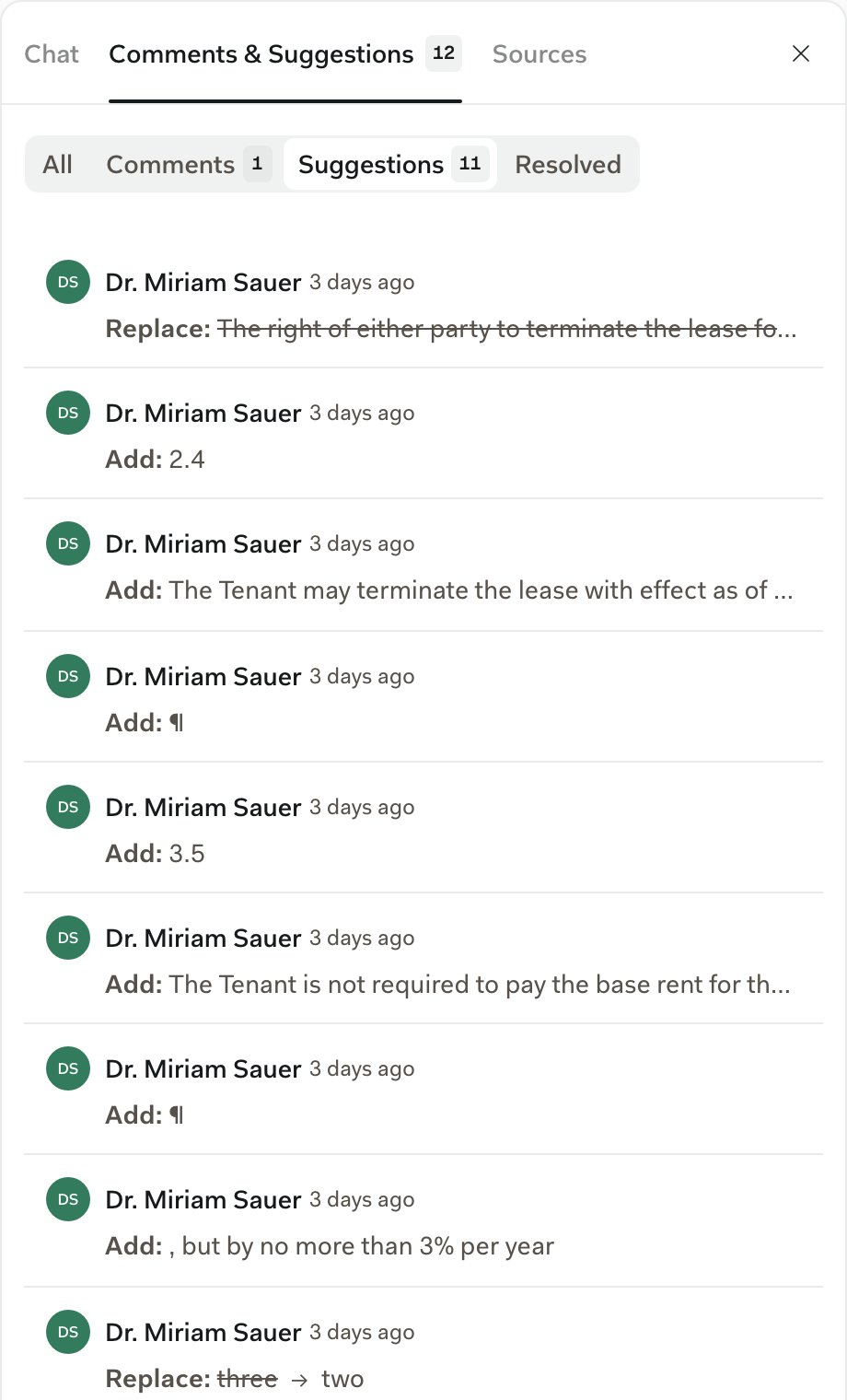
Next steps
Let Libra work through redlines
What the Editor chat can change, and how to check its work.
Sharing & access
How project sharing and its access levels work.