
Templates and themes at a glance
A drafting template usually carries a theme, and Use turns the template into a new draft with that theme applied. One theme can serve several templates, so your house style lives in one place.
Libra also ships one theme of its own, called Libra, which you can apply but not change. Sharing templates and themes is covered in Collaboration.
Create a drafting template
Most firms start from a Word document they already use. Creating drafting templates needs the Professional plan. Before you start, check the document:- It’s a
.docxof up to 25 MB and 50 pages. - It uses real Word styles, such as Heading 1 and Heading 2, rather than bold text set by hand. Libra builds the theme from those styles.
- Its blanks are marked in the text, such as
[Tenant],{{Commencement date}}, a line of underscores or a checkbox. Drafting templates have no placeholder fields: the Editor chat finds these blanks and fills them.
From a reference document
These steps take you from your firm’s Word file to a saved template.1
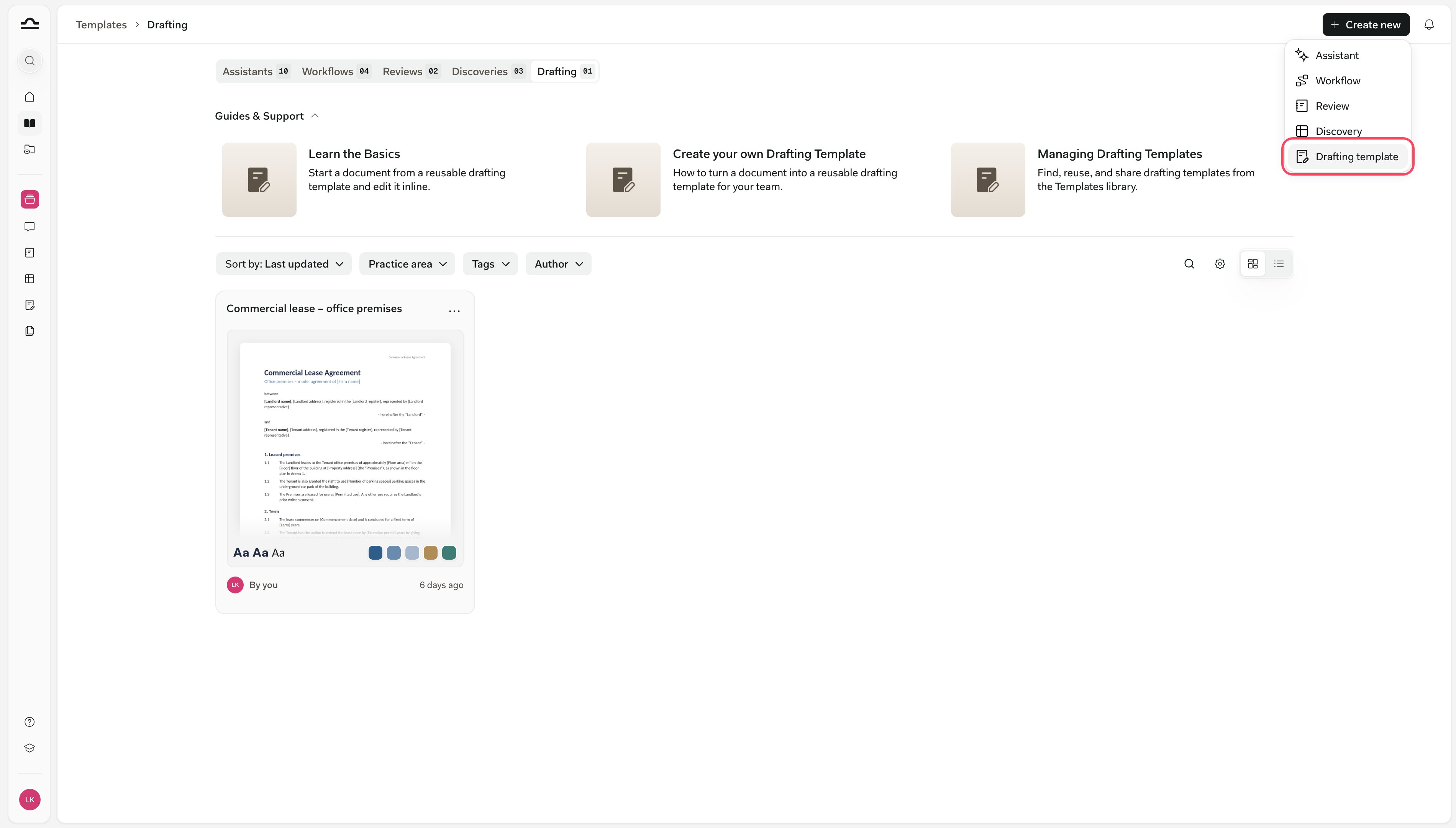
Create a new drafting template
2
Attach your reference document
Choose With a reference document, then Attach. Upload document from device takes a file from your computer, and Add existing document takes one that’s already in Libra. Then click Create.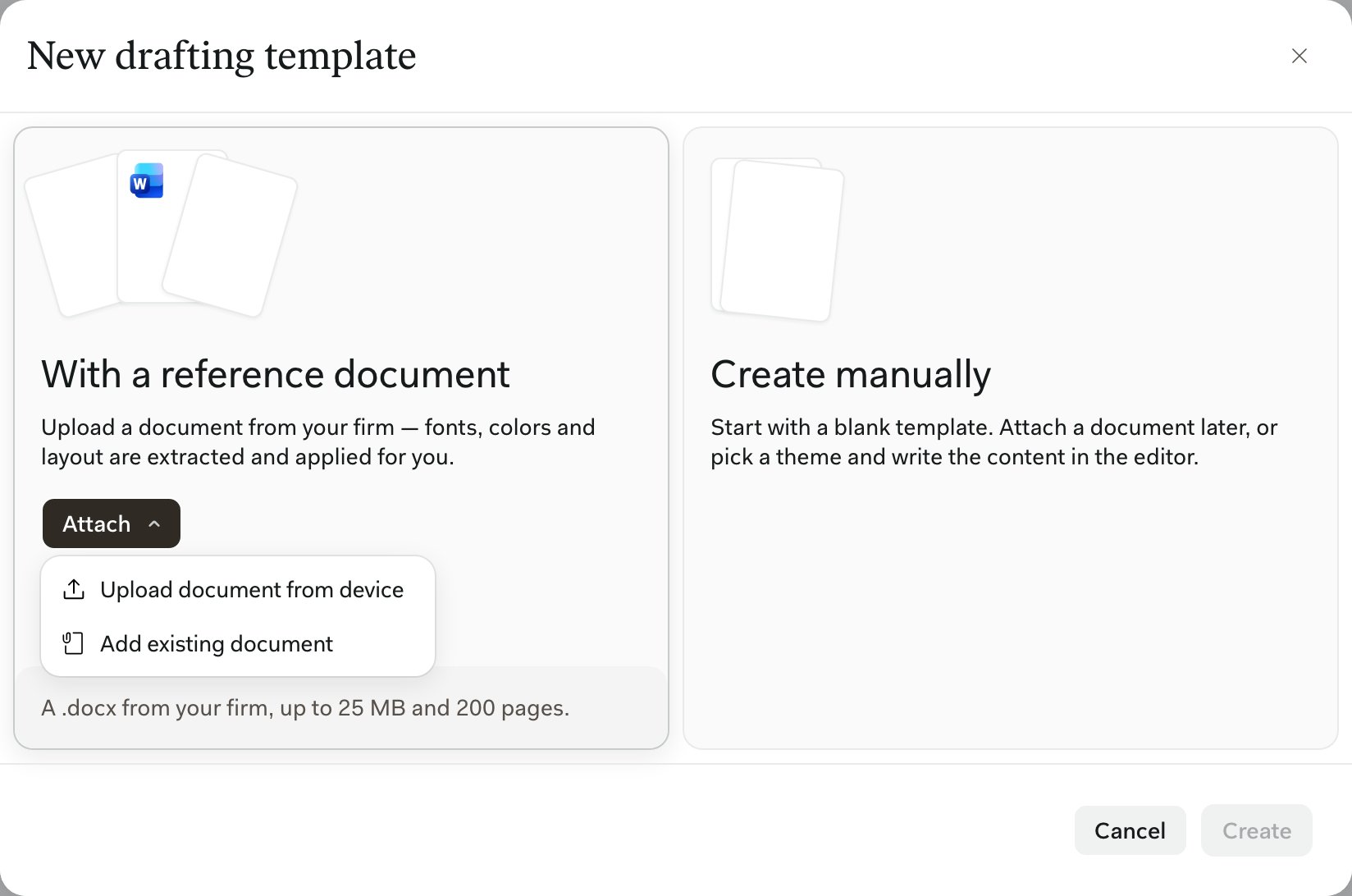
3
Check the reference document
The Content step shows the reference document page by page, as it will load into every new draft. Edit opens it in the Editor and Replace swaps in a different file.The × on the file name removes it, and new drafts then start from the theme alone.Libra warns you if the document is styled by direct formatting, has no colour theme or has no recognisable headings. Fix the styles in Word and replace the file, or adjust the theme in the next step.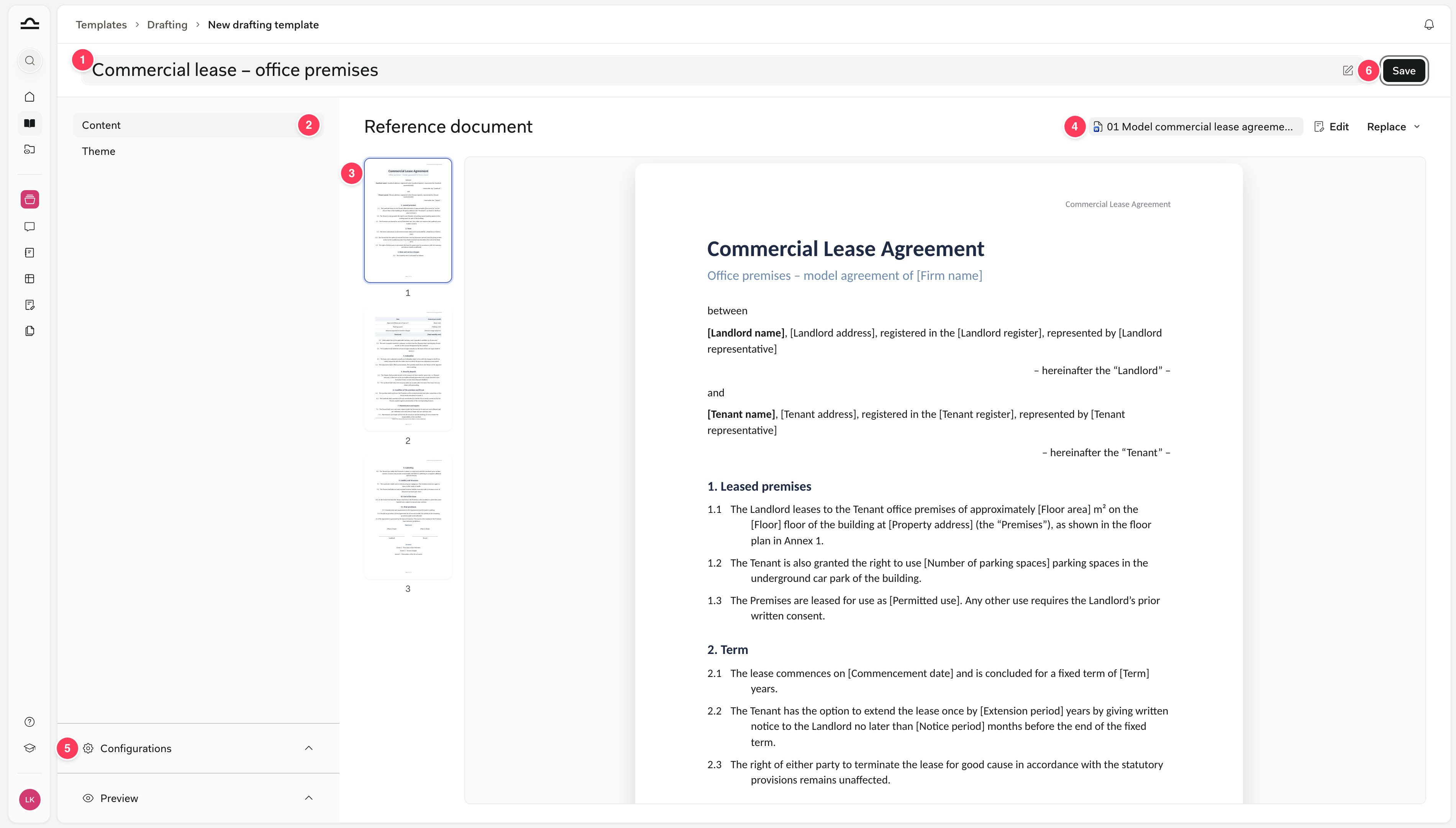
- The template name
- The Content and Theme steps
- The reference document, page by page
- The file, with Edit and Replace
- Configurations and Preview
- Save
4
Choose the theme
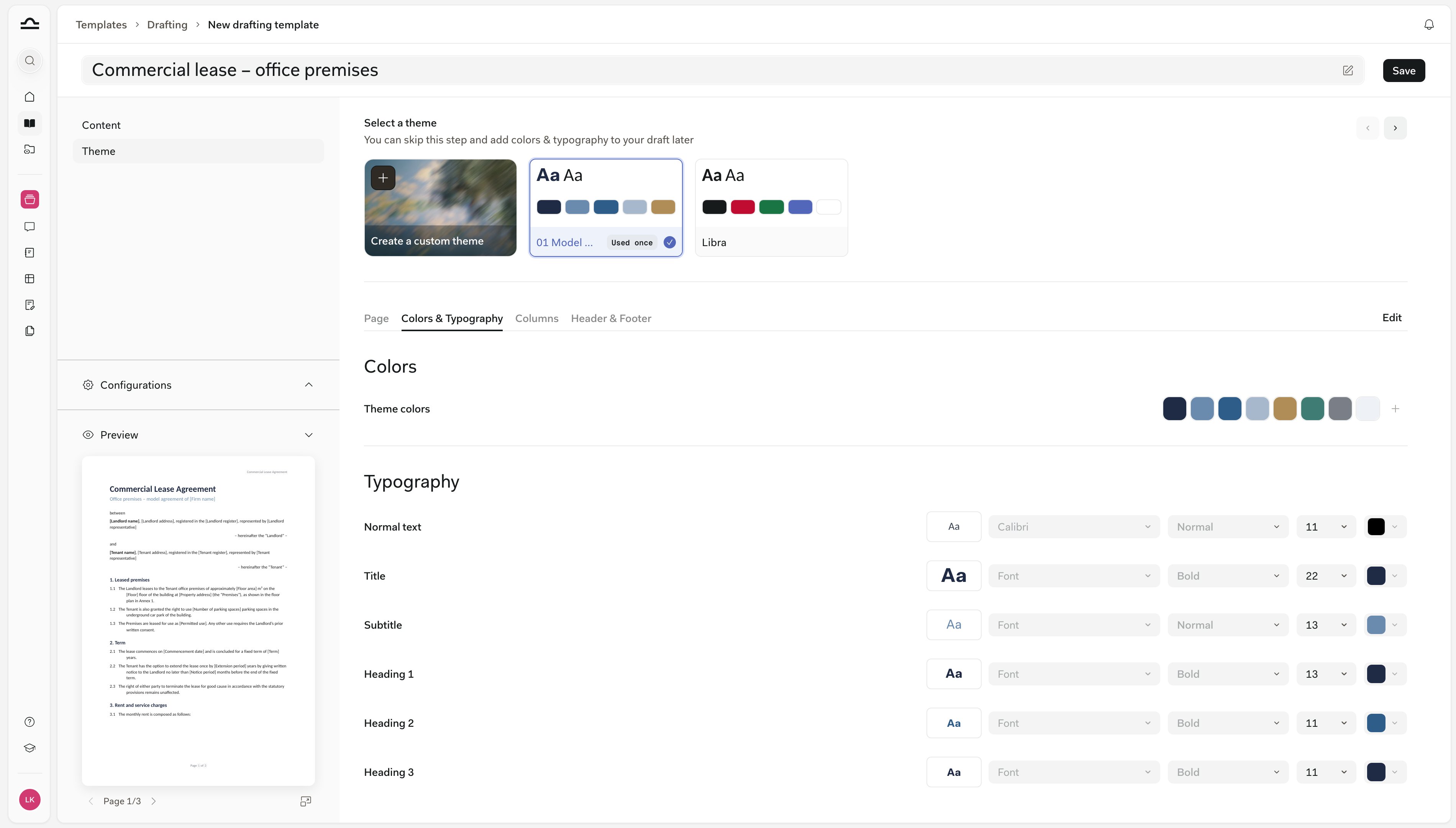
5
Name, tag and save
Name the template at the top, add a practice area, tags and jurisdictions under Configurations, check the Preview, then click Save. Nothing is stored until you save, and a template needs a reference document or a theme. See Practice areas & tags.
From a draft
You can turn any draft you can edit into a template, including one you wrote with Libra. In the Editor, click the arrow next to Save and choose Save as template.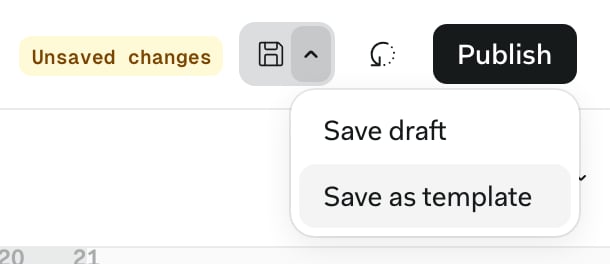
Start a draft from a template
Hover a template and click Use, in Templates › Drafting or in the templates strip on the Drafting page. Libra creates an independent copy in the project’s Drafts folder and applies the template’s theme, so changes to the draft never touch the template. Then let the Editor chat fill the blanks. Attach the client’s instructions, for example an email thread you exported from Outlook with the Libra add-in, and ask: “Fill in the bracketed blanks from the attached email.” Libra fills each blank on its own and tells you which ones are still open, such as the place and date of signing. In Editing mode, Show changes walks you through every fill.Change a template
Open a template from Templates › Drafting to change it, then click Save. Drafts already started from it keep their content; if you change the theme, they get the option to apply it. To change a template’s text, click Edit on its Content step. The Editor opens in template mode, with the banner You are editing the template ”…”, and nothing autosaves. Save updates the template for everyone who uses it, and the arrow next to it offers Save as new template. Template mode has no Publish. A template built from a document in Libra notices when that document changes. The template editor then shows The reference document has been updated since this template was built from it. Update template loads the newer version and keeps your theme and style choices, or dismiss the banner to keep the template as it is. To adapt a colleague’s template without changing theirs, Duplicate it from its ⋯ menu. The copy is yours. Only a template’s author can delete it.Create a theme in the Editor
You don’t need a template to make a theme. Format a draft the way you want it, then open Theme in the toolbar and choose Create new theme, or use Save as theme › Save as new theme at the bottom of the Formatting panel. Opening or uploading a Word document doesn’t create a theme by itself. Only a template’s reference document does.Apply and change a theme
Theme in the toolbar lists your themes. Click one to apply it: Libra restyles the document’s paragraph styles and colours, and its page setup if the theme has one. The confirmation has an Undo button.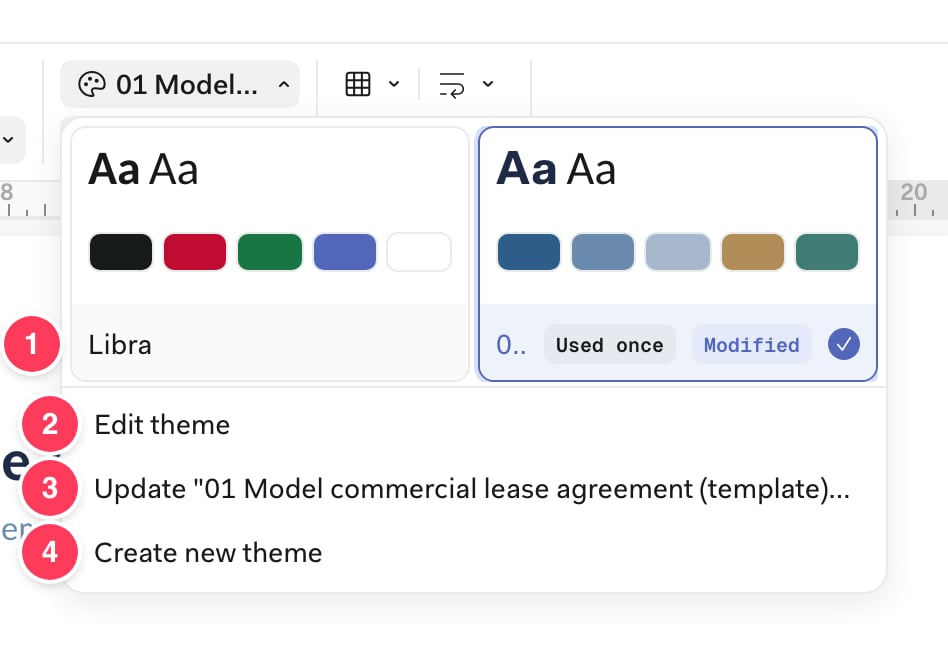
- Your themes, each with how many templates use it. Modified marks the selected one when you’ve changed the document by hand. A card’s ⋯ menu renames, duplicates or removes the theme, and Used in lists its templates.
- Edit theme opens the theme’s colours and styles in Colors & Typography.
- Update “…” to match document saves the document’s current look into the theme once it shows Modified. If templates use the theme, Libra names them and asks first.
- Create new theme, see Create a theme in the Editor.
Which “template” is which?
Libra has three things called templates, and they don’t mix.
The other tabs in Templates hold Assistants, Workflows, Playbooks and Discovery templates. See About templates.
Tips
- Clean up the styles in Word first. A reference document with real styles gives you a theme you rarely need to touch.
- Mark every blank the same way, like
[Tenant], so one prompt fills them all. - Name templates by document type and governing law, like Commercial lease (German law), and add a practice area so colleagues find them.
Next steps
Share a template
Give colleagues your templates, and the theme that comes with each one.
Work in the Editor
Format a draft and let Libra fill it in.